Hippocampus by Thalius turns your documents into a knowledge base you can ask questions in plain language. Every answer cites the pages it came from.
| Version | 0.91 (beta), October 2026 |
| Address | https://hippo.thalius.ai. After you sign in you land on your tenant's own address, <name>.hippo.thalius.ai |
| Plans | Free, Starter, Corporate. Controls your plan doesn't include stay visible but locked; see Locked features |
| Roles | Owner: manages the tenant, members and billing. Member: reads, asks, imports and edits where they have access |
Screenshots are from a Starter test tenant (light mode, 1440 px wide) unless the caption says Free.
| Control | What it does |
|---|---|
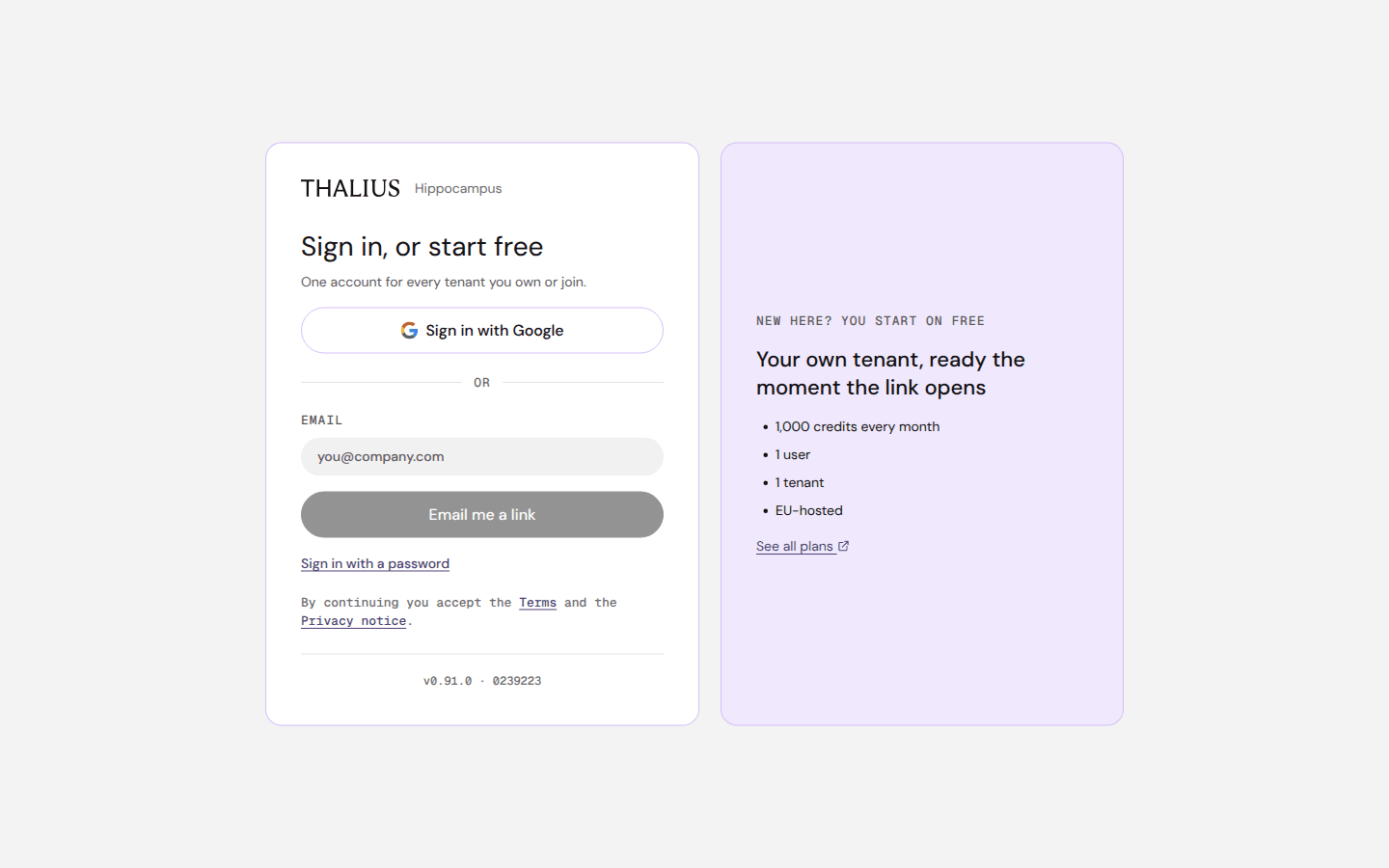
| Sign in with Google | Signs in with your Google account. A new account starts on Free |
| Email + Email me a link | Sends a sign-in link. The link works once, for 24 hours |
| Sign in with a password | Switches the card to email and password (below) |
| Terms, Privacy notice | Open the legal pages. By continuing you accept them |
| See all plans ↗ | Opens the plans on thalius.ai |
| Control | What it does |
|---|---|
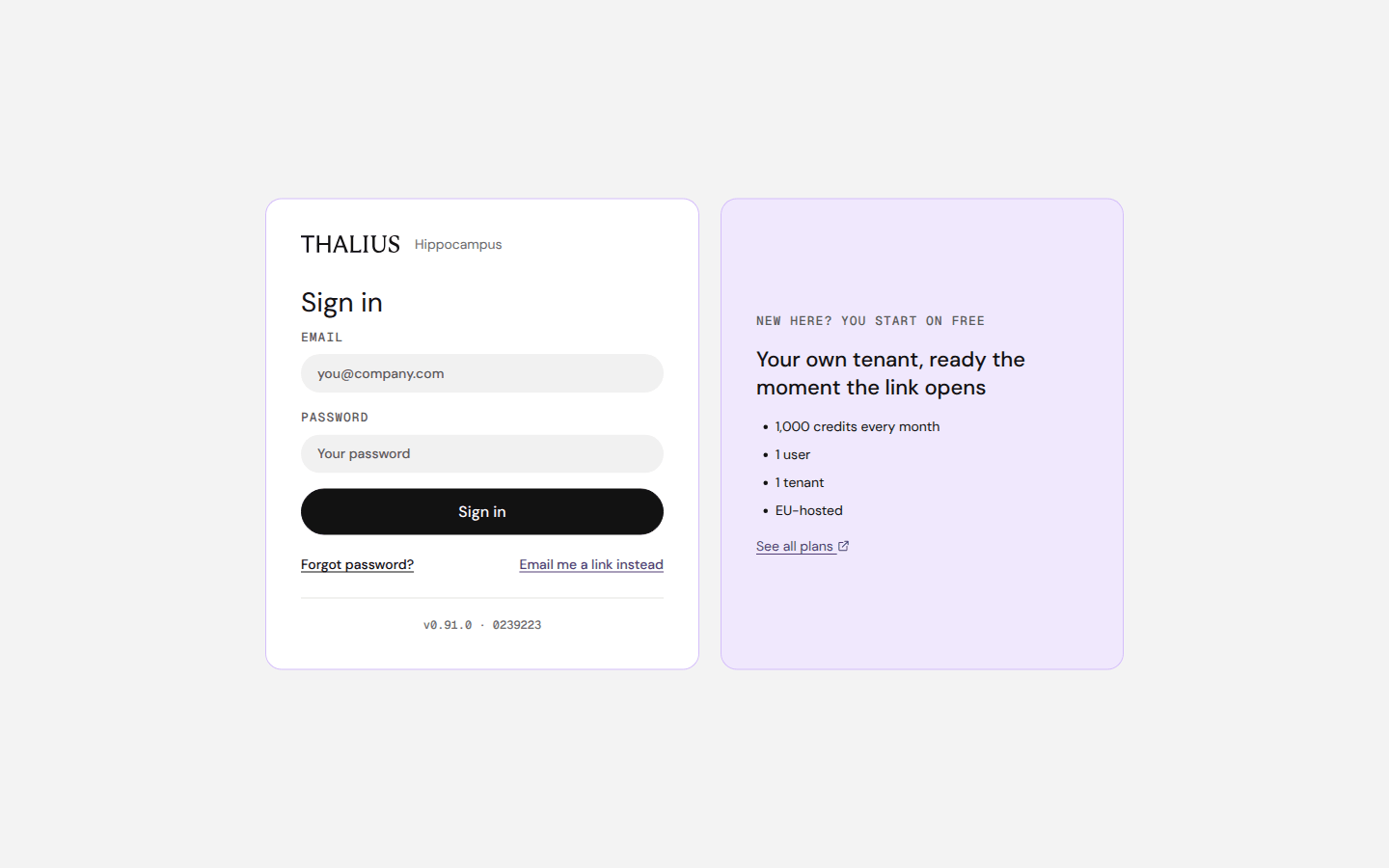
| Email, Password, Sign in | Signs in with a password |
| Forgot password? | Emails a reset link. The reset page asks for New password, Confirm password and Update password |
| Email me a link instead | Back to the email-link form |
After "Email me a link" the card shows Check your inbox:
| Control | What it does |
|---|---|
| Send it again | Sends a new link (after a short countdown) |
| Use another address | Back to the form |
First sign-in. Opening the link creates your account and your own tenant on Free (1,000 credits a month). You then land on your tenant's address.
Invitations. If someone invited you, a You've been invited dialog appears after sign-in:
| Control | What it does |
|---|---|
| Join | Joins that tenant. Then Go there now switches to it |
| Later | Asks again at your next sign-in |
| Continue | Closes the dialog |
Different tenant. If you open the address of a tenant you are not signed in to, the page says Different tenant. Sign out and sign in here signs you in to the one at this address.
| Control | What it does |
|---|---|
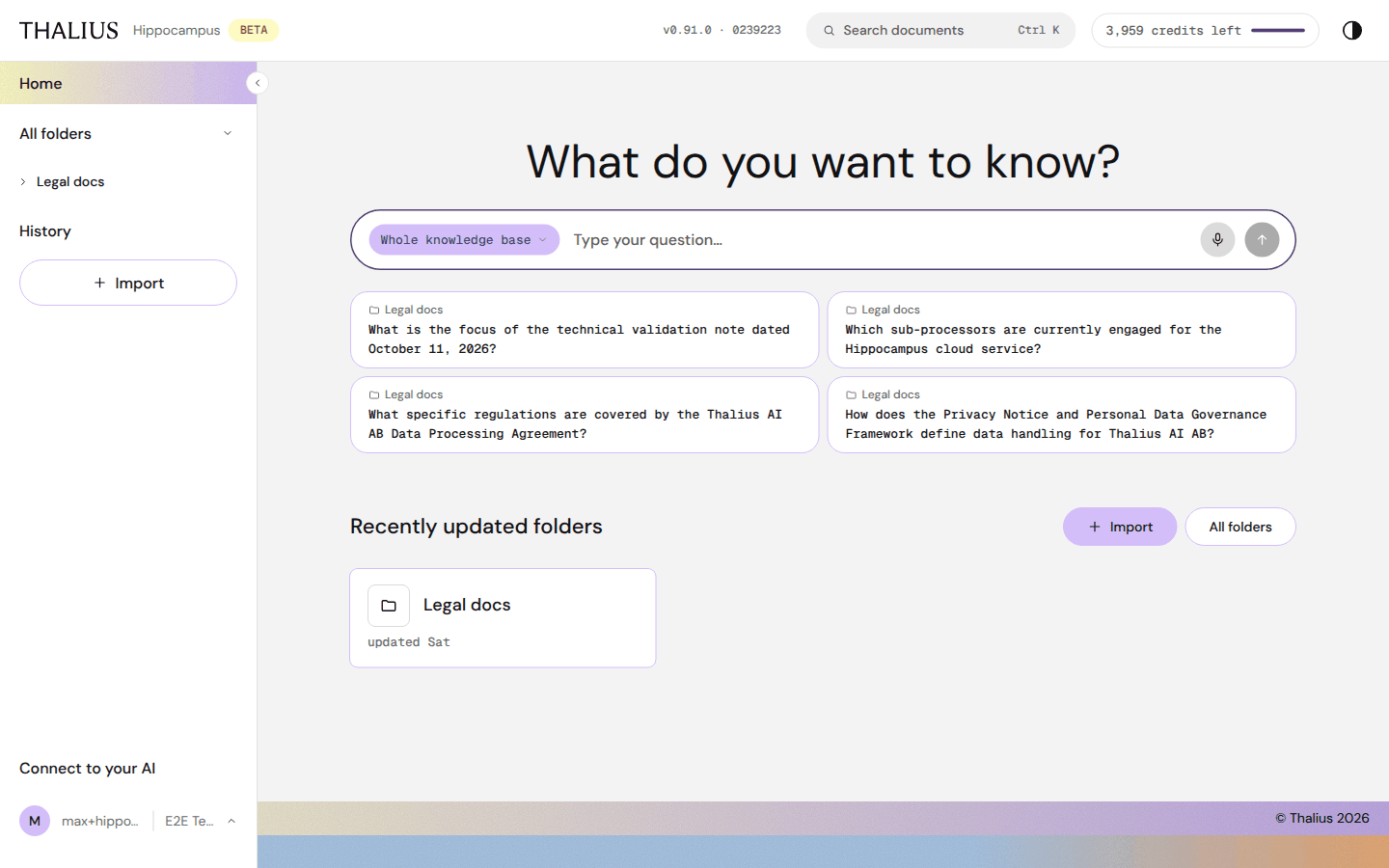
| THALIUS Hippocampus | Goes to Home |
| BETA | Shows that this is the beta release channel |
| v0.91.0 · build | Opens What's new (release notes). A dot means there's a release you haven't read |
| Search documents (Ctrl K / ⌘K) | Type and press Enter to open Search |
| N credits left | Credits left this period. Hover to open the credits popup. Owners: click to open Billing |
| ◐ | Switches between light and dark mode |
| Control | What it does |
|---|---|
| ‹ (edge of the menu) | Fold the menu in. A small › button brings it back. The browser remembers your choice |
| Home | Start page |
| All folders | Lists every folder you can open. ⌄ hides or shows the folder tree below it |
| Folder names, › | Open a folder, or unfold its subfolders in place. Show all (N) appears when there are more than 8 |
| History | Your past chats |
| + Import | Opens the Import dialog. During an import it shows Importing n/N |
| Connect to your AI | Use Hippocampus from Claude or ChatGPT; see Connect to your AI |
| Account row (initial, name, tenant) | Opens the account menu |
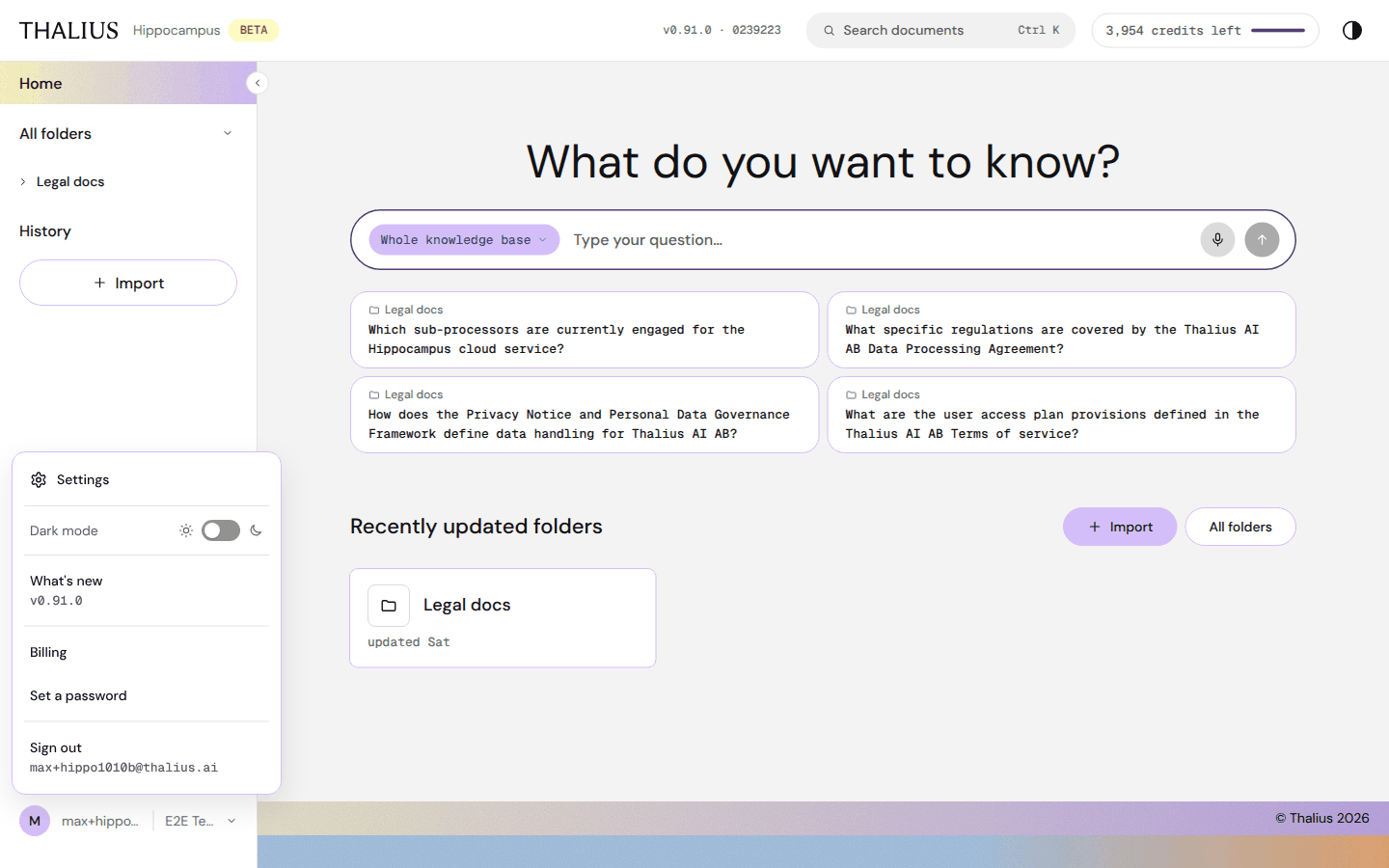
| Item | Who sees it | What it does |
|---|---|---|
| Verify email | Anyone whose email isn't verified yet | Sends a verification link (needed for admin access) |
| Settings | Owners and admins | Opens Settings |
| Dark mode | Everyone | Switch: sun = light, moon = dark |
| What's new | Everyone | Release notes for the current version |
| Tenant list | People in two or more tenants | ✓ marks the current tenant. Choose another to switch; you continue, already signed in, at that tenant's address |
| Billing | Owners | Opens Billing |
| Set a password | People who don't sign in with Google | Sets a password for password sign-in |
| Sign out | Everyone | Signs you out on every Hippocampus address in this browser |
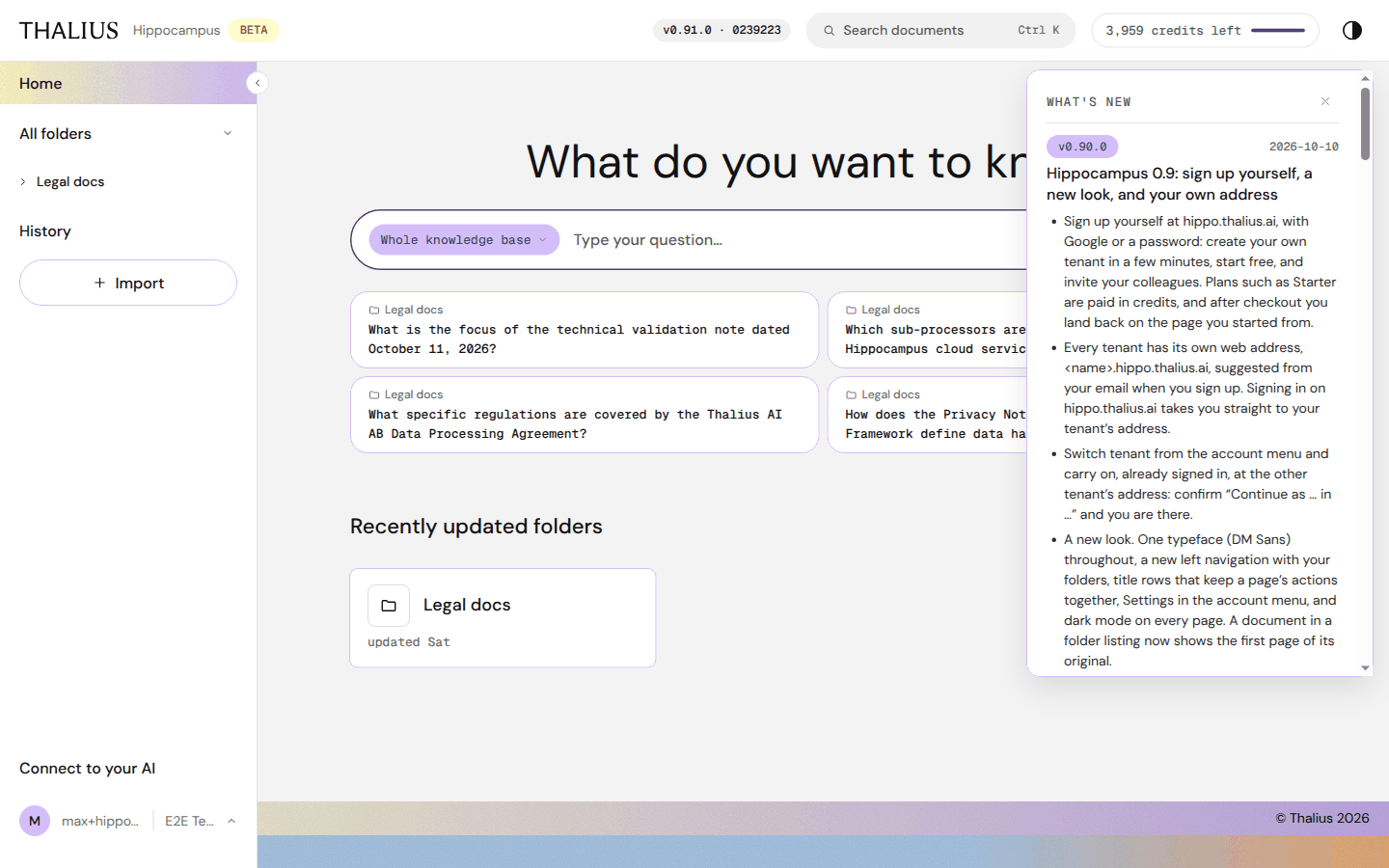
The panel lists each release with its date and changes. × closes it. When a new release arrives, a short notice appears; click it to open the panel.
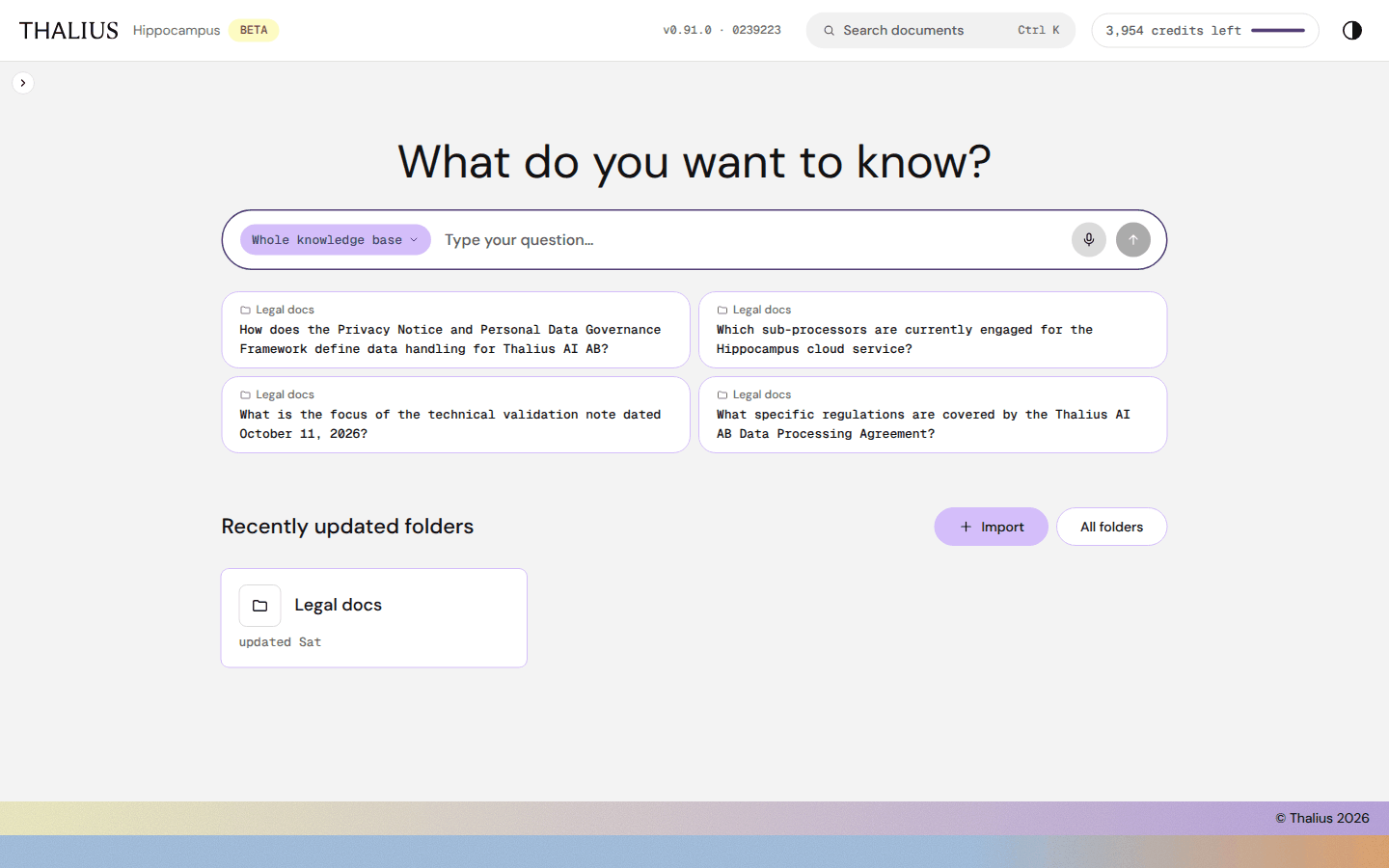
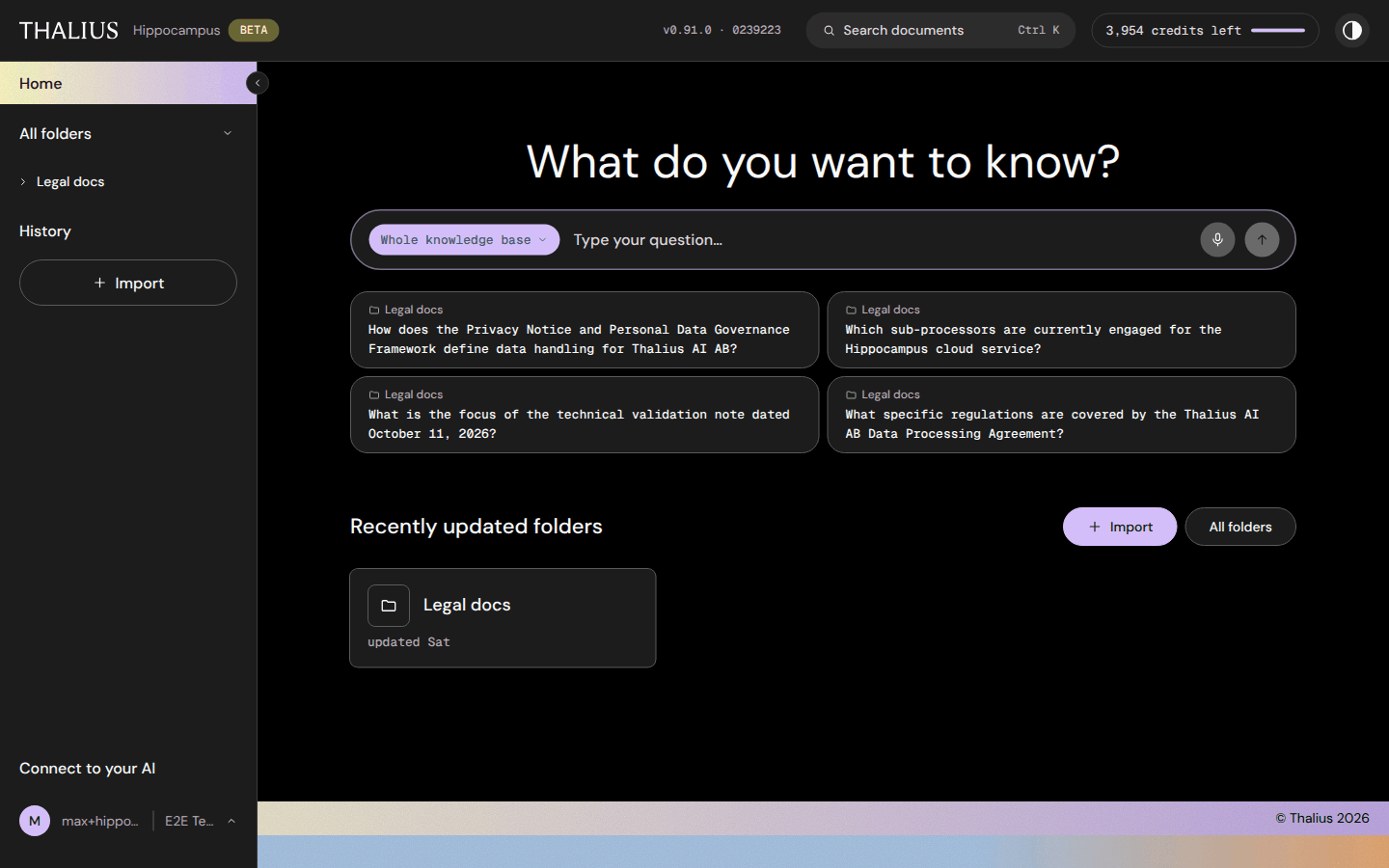
The start page. Ask a question, or open a recently updated folder.
| Control | What it does |
|---|---|
| What do you want to know? box | Type a question. Enter asks; Shift+Enter adds a line |
| Whole knowledge base ⌄ | Scope chip: choose where to ask. See Asking questions |
| 🎙 (Dictate) | Speak your question. Your browser asks for the microphone the first time |
| ↑ (Ask) | Asks the question and opens Chat |
| Suggested question cards | Built from your folder summaries. A click fills the box and scopes it to that folder; nothing is sent until you press Ask |
| + Import | Opens Import |
| All folders | Opens All folders |
| Folder cards | Open the folder. updated … shows when it last changed |
Empty tenant. Home shows No folders yet with + Import. Folders that others share with you appear here once they're ready.
You can ask from Home, or from the ask box docked at the bottom of every folder, document and History page.
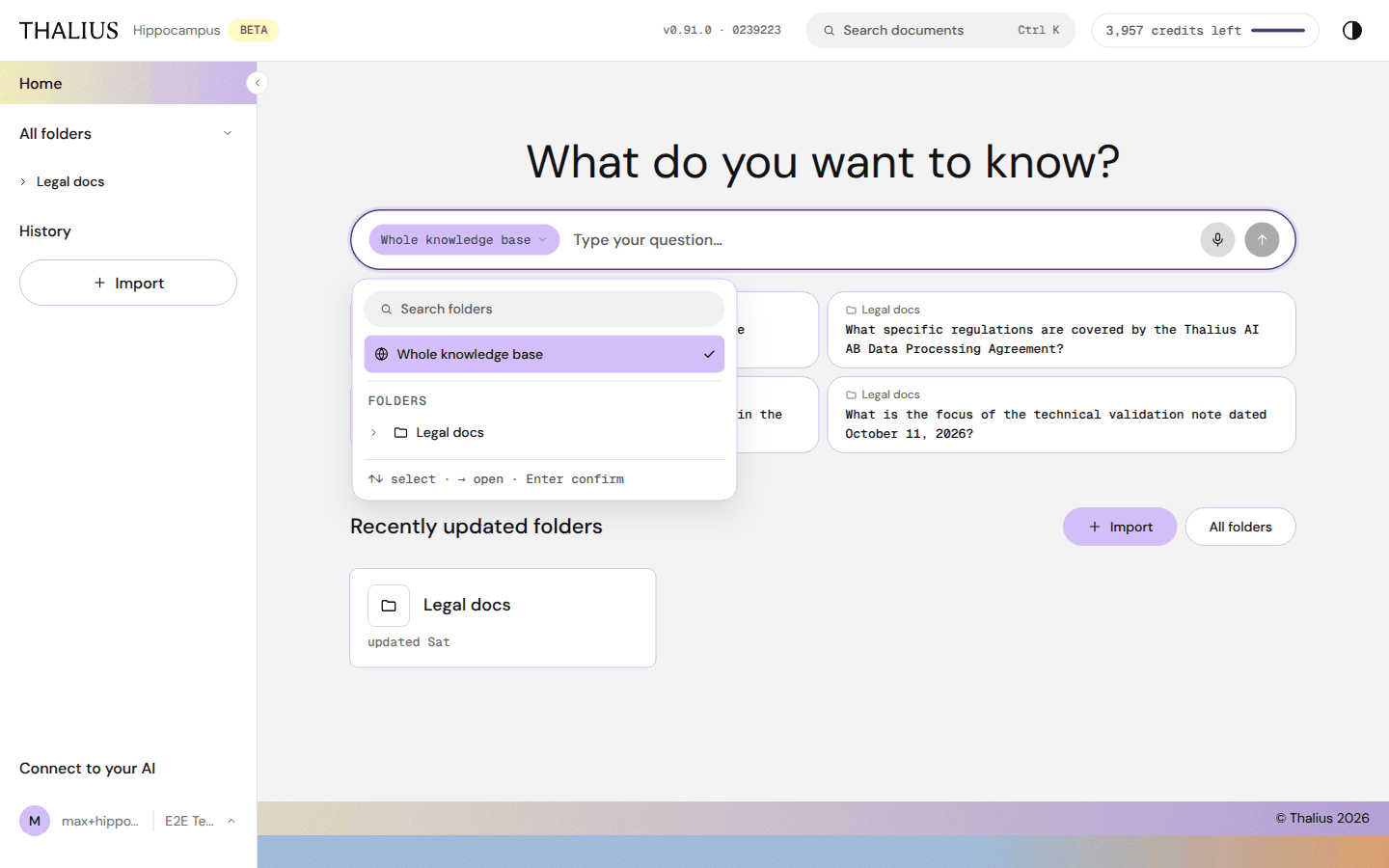
| Control | What it does |
|---|---|
| Scope chip (e.g. Whole knowledge base, Legal docs) | Opens the picker. On a folder or document page the chip starts on that folder or document |
| Search folders | Finds a folder by name |
| Whole knowledge base | Asks across everything you can open |
| Folders tree, › | Pick a folder; › opens its subfolders |
| Recently used | Scopes you used before |
| Keys | ↑ ↓ select · → open · ← close · Enter confirm · Esc close |
A question scoped to a document searches the folder that holds the document.
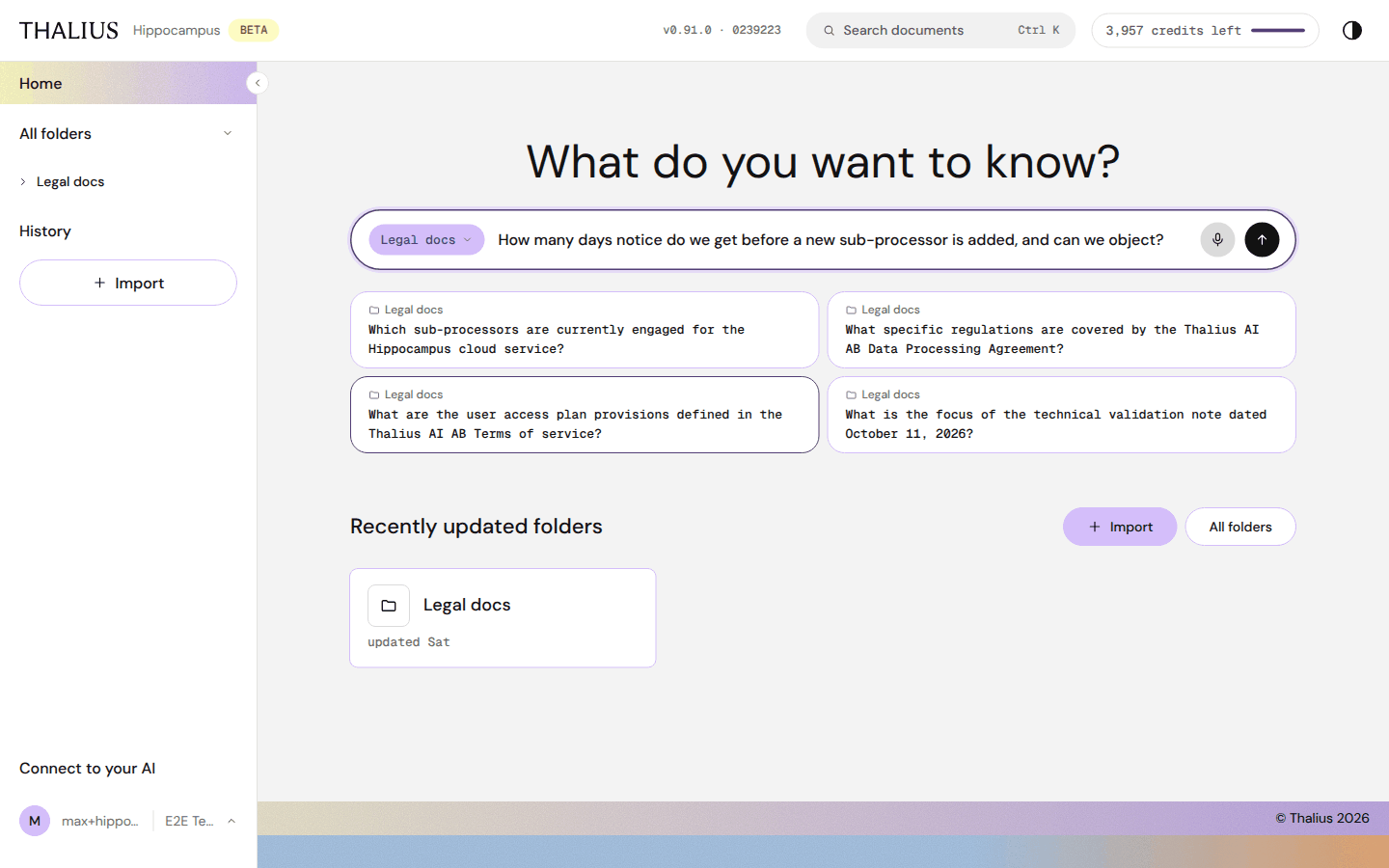
| Control | What it does |
|---|---|
| Question field | Enter asks; Shift+Enter adds a line |
| 🎙 | Dictate; press again to stop |
| ↑ | Ask |
| › (docked box only) | Fold the question box away. A round button brings it back (⌘J on a Mac) |
Each question costs credits; see Credits.
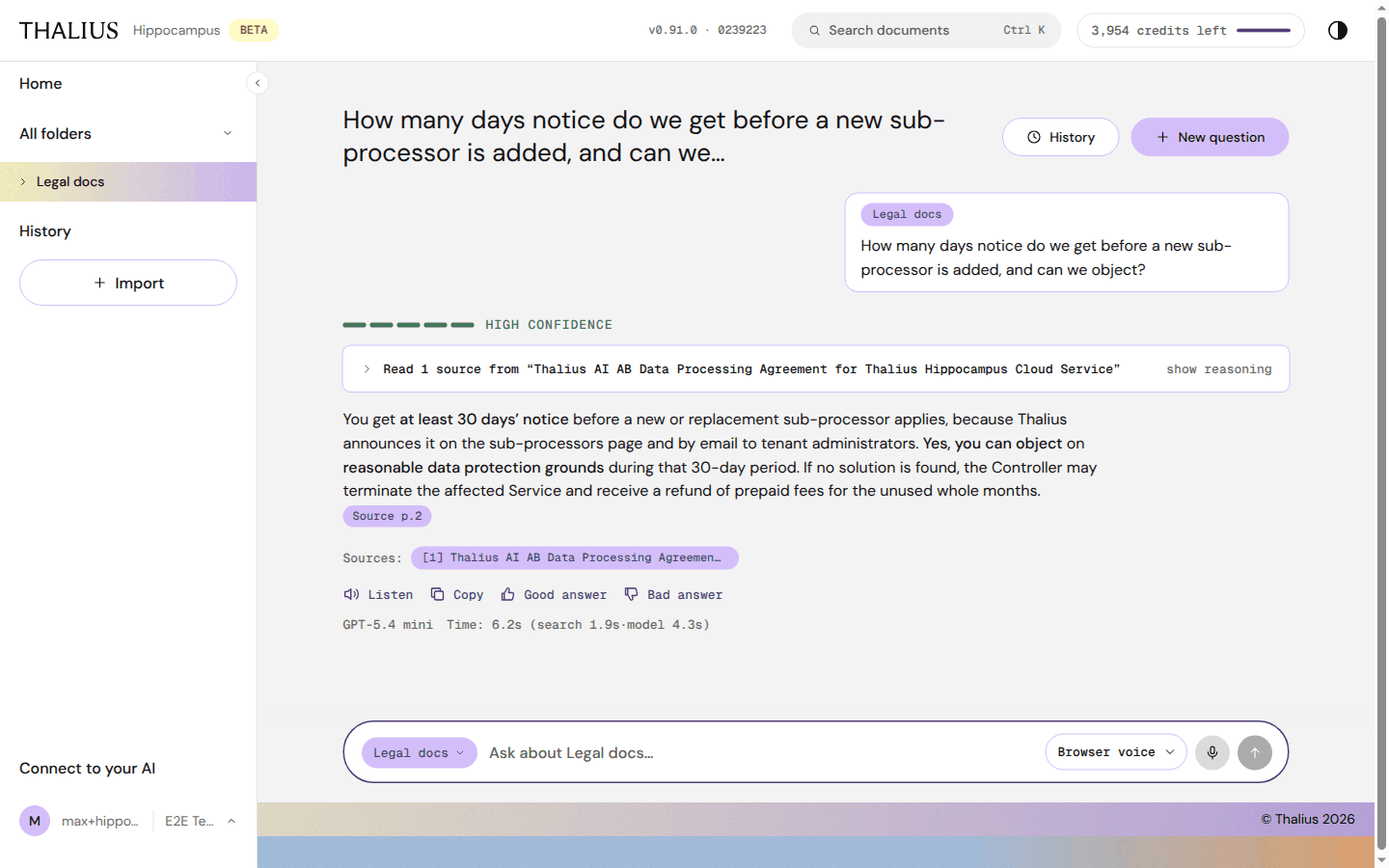
| Element / control | What it does |
|---|---|
| Title | Your first question in this chat |
| History | Your earlier chats (see 5.4) |
| + New question | Starts a new chat |
| Your question, with its scope chip | What you asked and where |
| Status lines (while working) | Reading your question… · Searching documents… · Found N relevant sections… · Synthesizing answer… |
| Confidence bar | High, Good, Moderate, Low or Very low confidence: how well the sources support the answer |
| Read N sources from … · show reasoning | Opens the search steps (5.2) |
| Source p.N chips | Open the quoted passage (5.3) |
| Sources: [1] [2] … | Every source used. Show all N sources → lists the rest |
| Model and Time line | The model that wrote the answer, and how long search and answer took |
Hippocampus searches your documents for every question. Follow-ups, greetings and thanks are answered without a search. If the documents don't contain the answer, it says so instead of guessing.
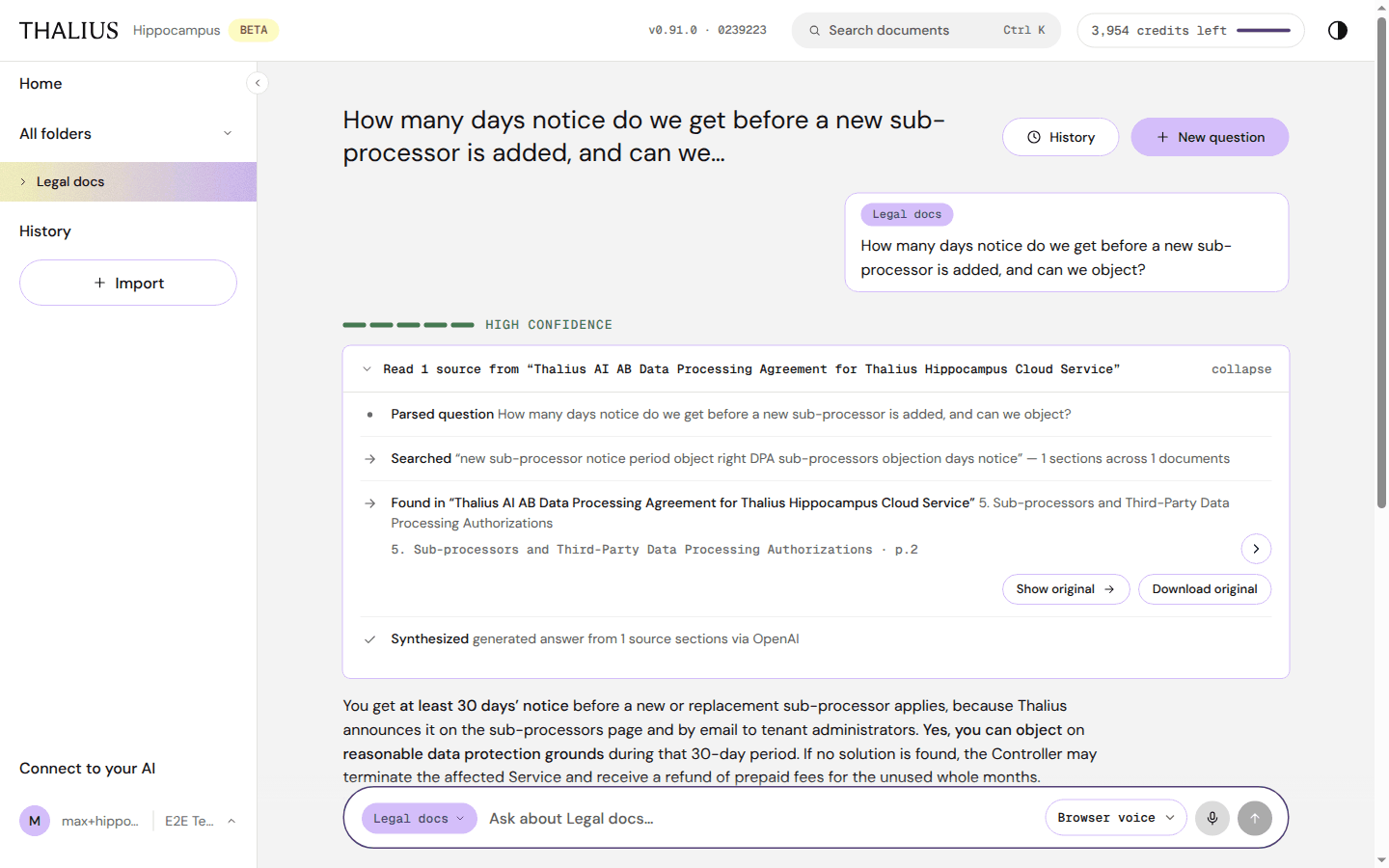
| Step | Shows |
|---|---|
| Parsed question | How the question was understood |
| Searched | The search terms, and how many sections in how many documents matched |
| Found in | Each document and section used, with Show original and Download original |
| Synthesized | How many sections the answer was written from |
collapse closes the panel.
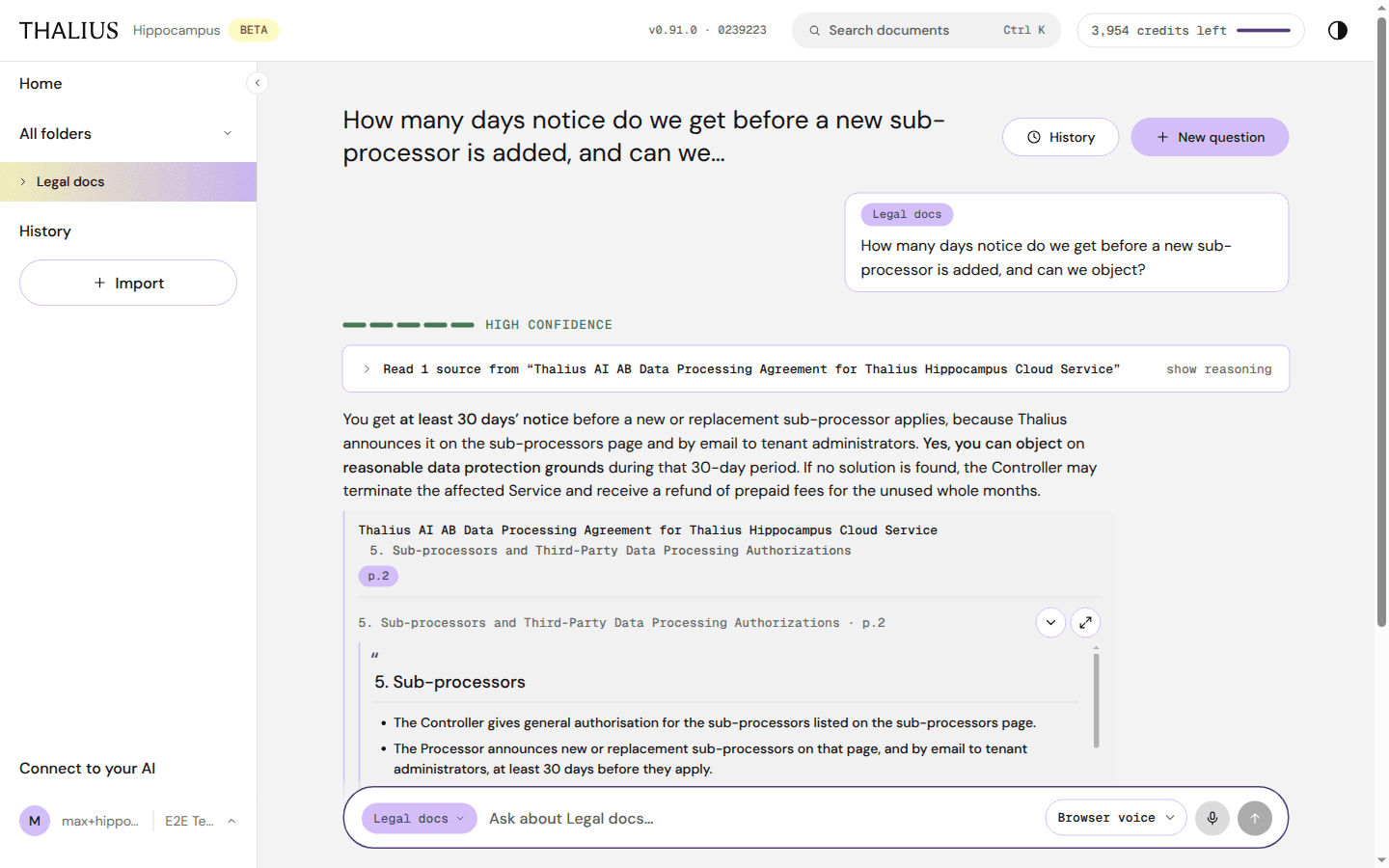
| Control | What it does |
|---|---|
| Document, section and p.N | Where the quote comes from |
| ⌄ / ⤢ | Show or hide the quote; expand it |
| Show original → | Opens the original file at that page, beside the chat |
| Download original | Downloads the original file |
This document has changed since this passage was indexed means you should check the original.
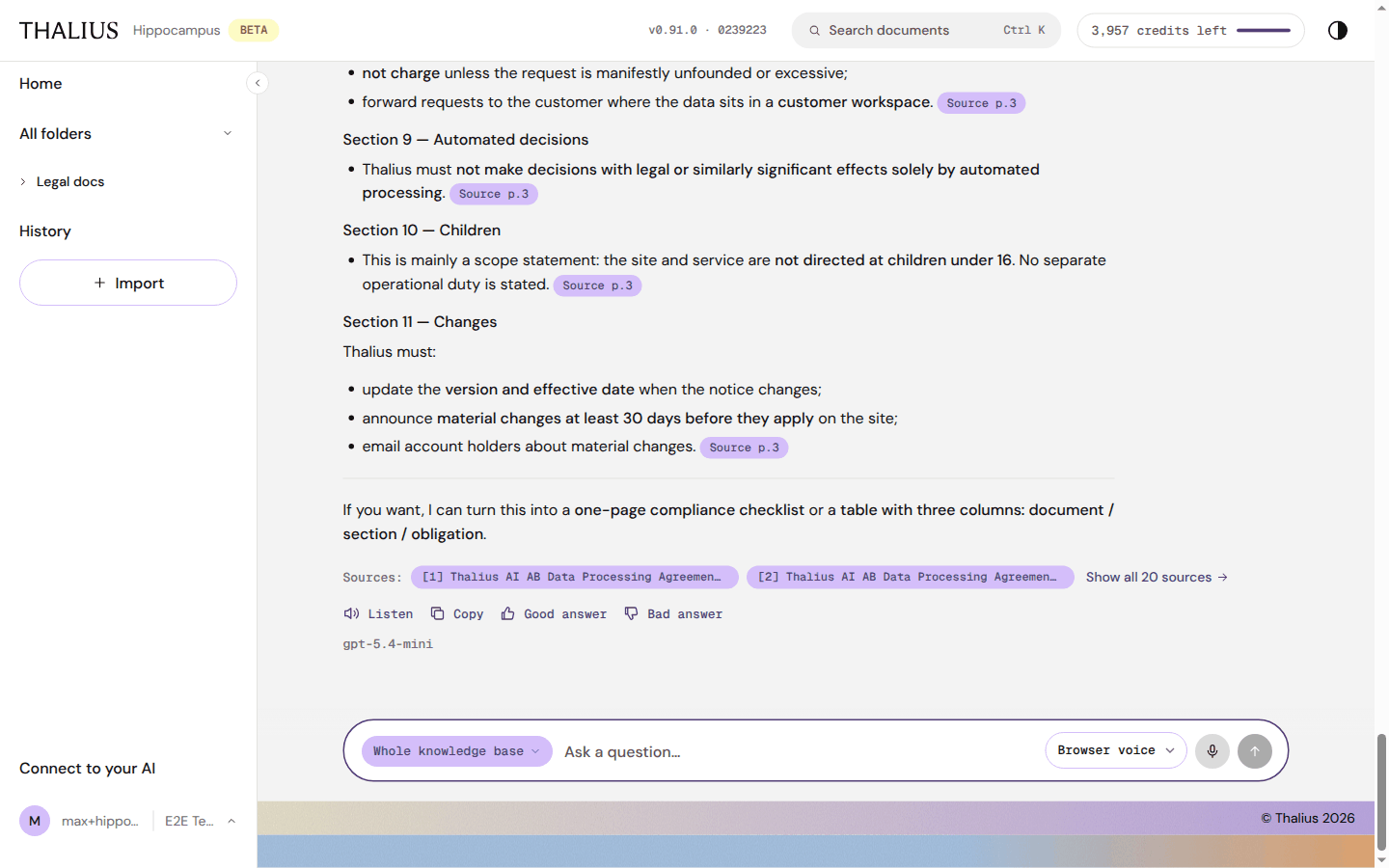
| Control | What it does |
|---|---|
| Listen / Stop | Reads the answer aloud |
| Copy | Copies the answer |
| Good answer / Bad answer | Tells Thalius whether the answer helped |
| Show answer | Earlier answers in the chat fold to one line; this opens them again |
| Scope chip, question field | As on Home. ↑ ↓ in the empty field walks through your past questions |
| Browser voice ⌄ | Voice for Listen: Browser voice or OpenAI voice |
| 🎙 | Dictate your question |
| ↑ / ■ | Send. While an answer is being written it becomes Stop (or press Esc) |
| Retry | Shown after an error or a stopped answer; asks again |
A stopped answer costs no credits for the answer; searches that already ran are charged.
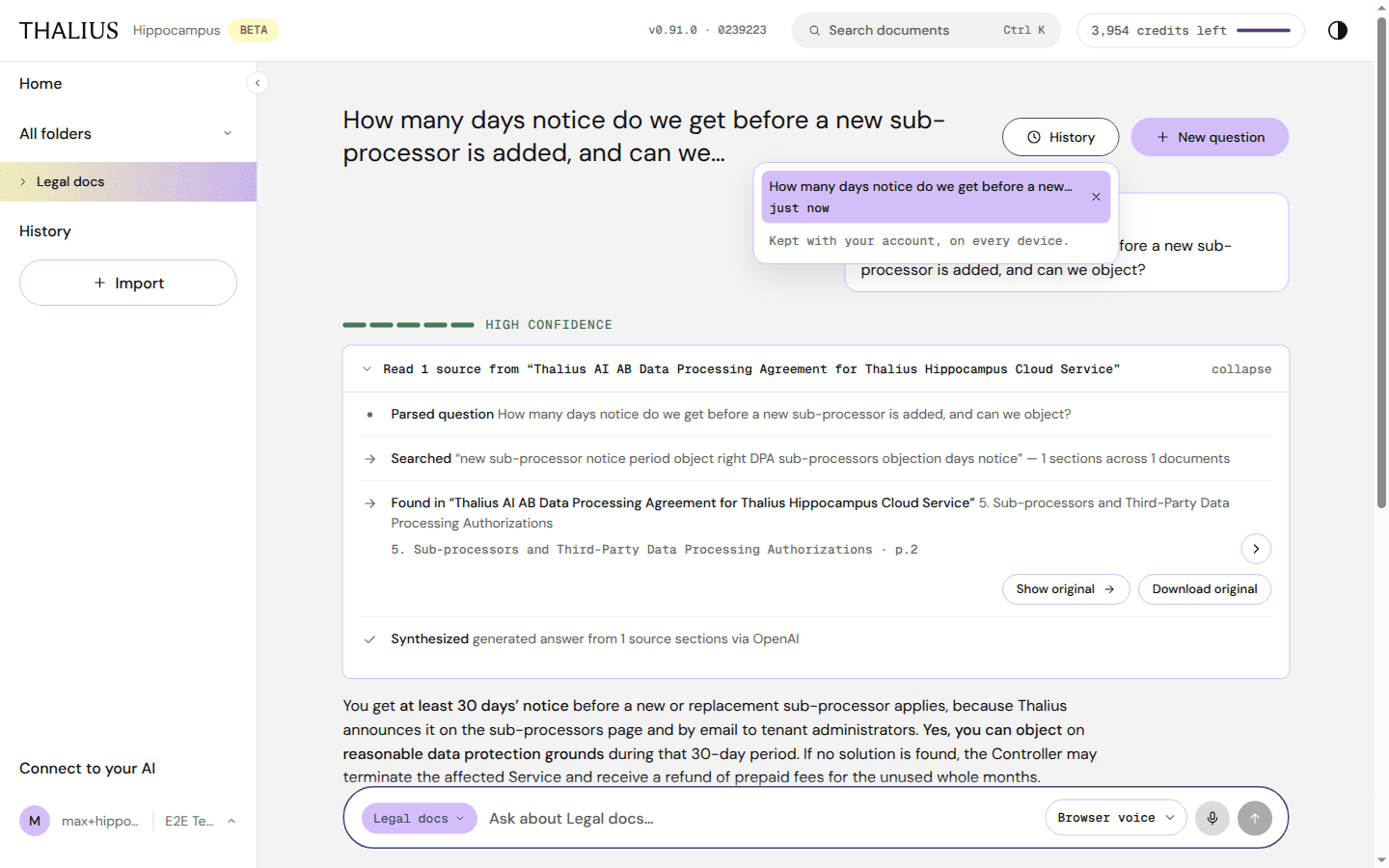
Earlier conversations lists your chats in this tenant. Click one to reopen it; × deletes it after you confirm. Chats are kept with your account, on every device.
If credits run out, a payment is due, or the tenant is over its plan's limits, the input bar shows the reason with Top up, Upgrade or Update card. Pressing Send opens a dialog (Out of credits, Payment needed, Over your plan's limits). Your question is kept; ask it again once questions resume. Reading documents always works.
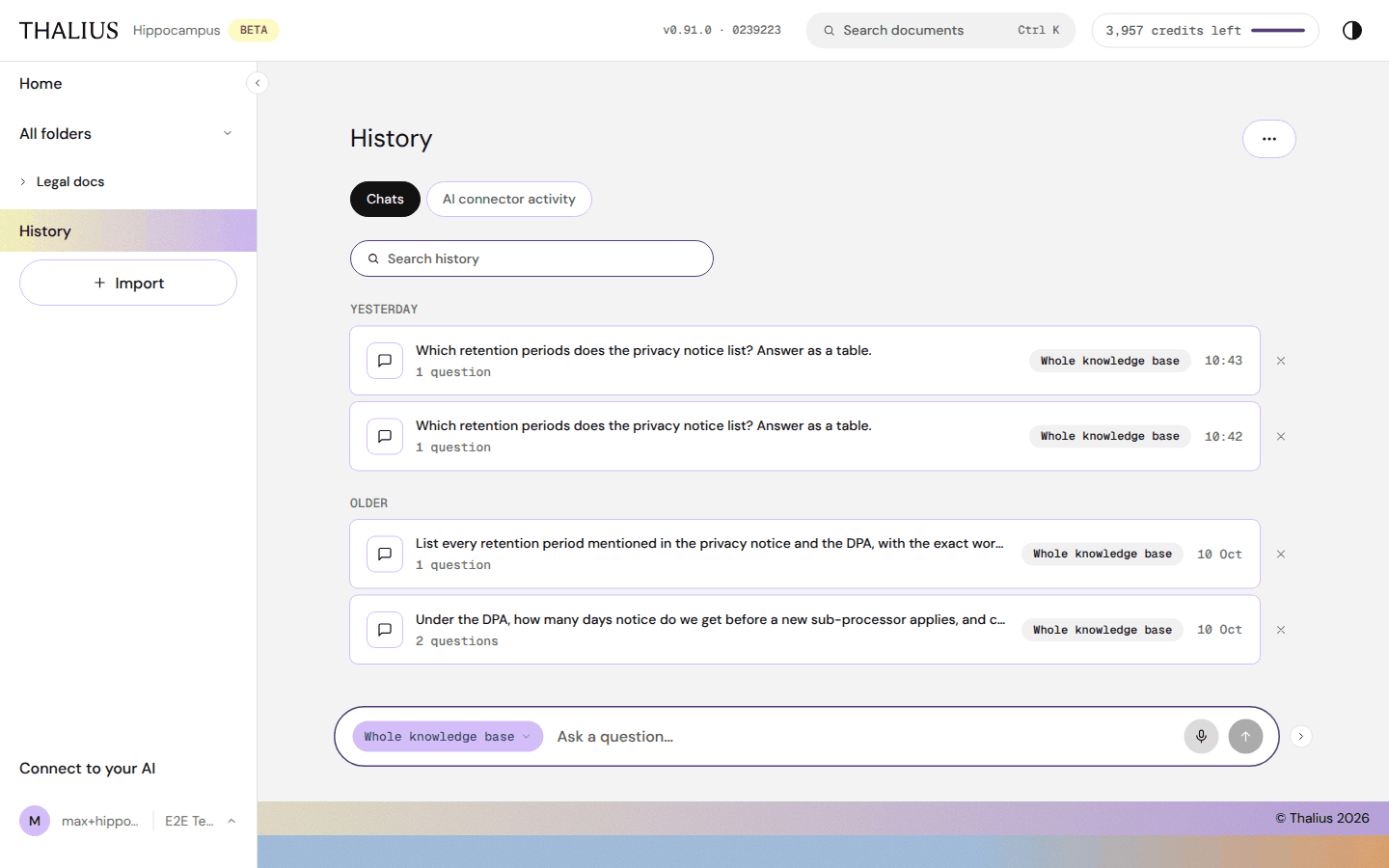
| Control | What it does |
|---|---|
| Chats / AI connector activity | Two tabs |
| ⋯ → Clear all history | Deletes every chat. Click twice to confirm |
| Search history | Filters your chats |
| Chat rows | Title, number of questions, scope, time. Click to reopen |
| × | Delete this conversation (asks first) |
| Show older chats | Loads more |
Chats are grouped Today, Yesterday, Earlier this week and Older.
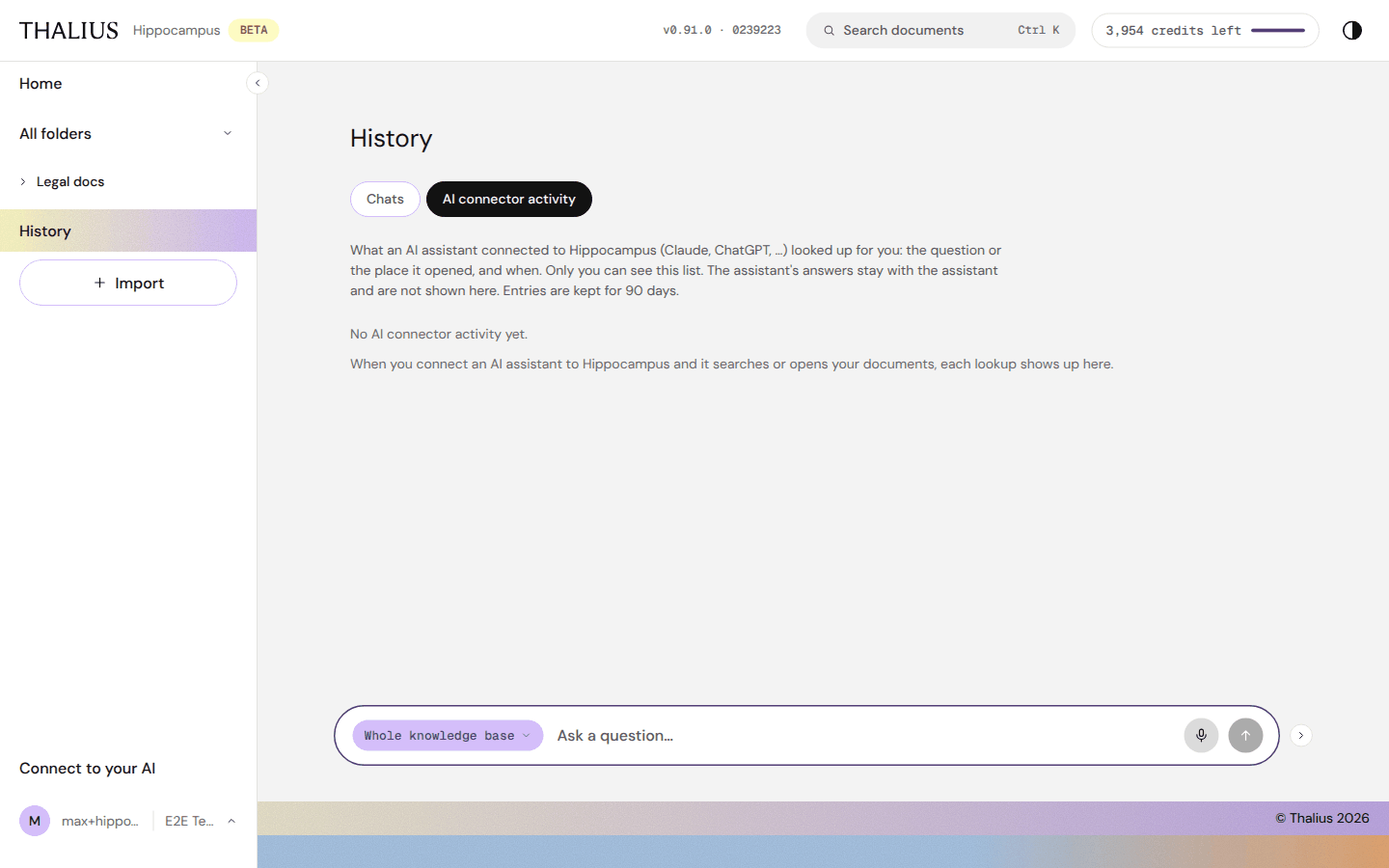
AI connector activity lists what an AI assistant connected to Hippocampus (Claude, ChatGPT, …) looked up for you: the search or the document, the app, the folder and the time. Only you see this list; entries are kept for 90 days. Each row has Search again, Ask in chat or Open, and × to delete it. ⋯ → Clear all activity deletes them all.
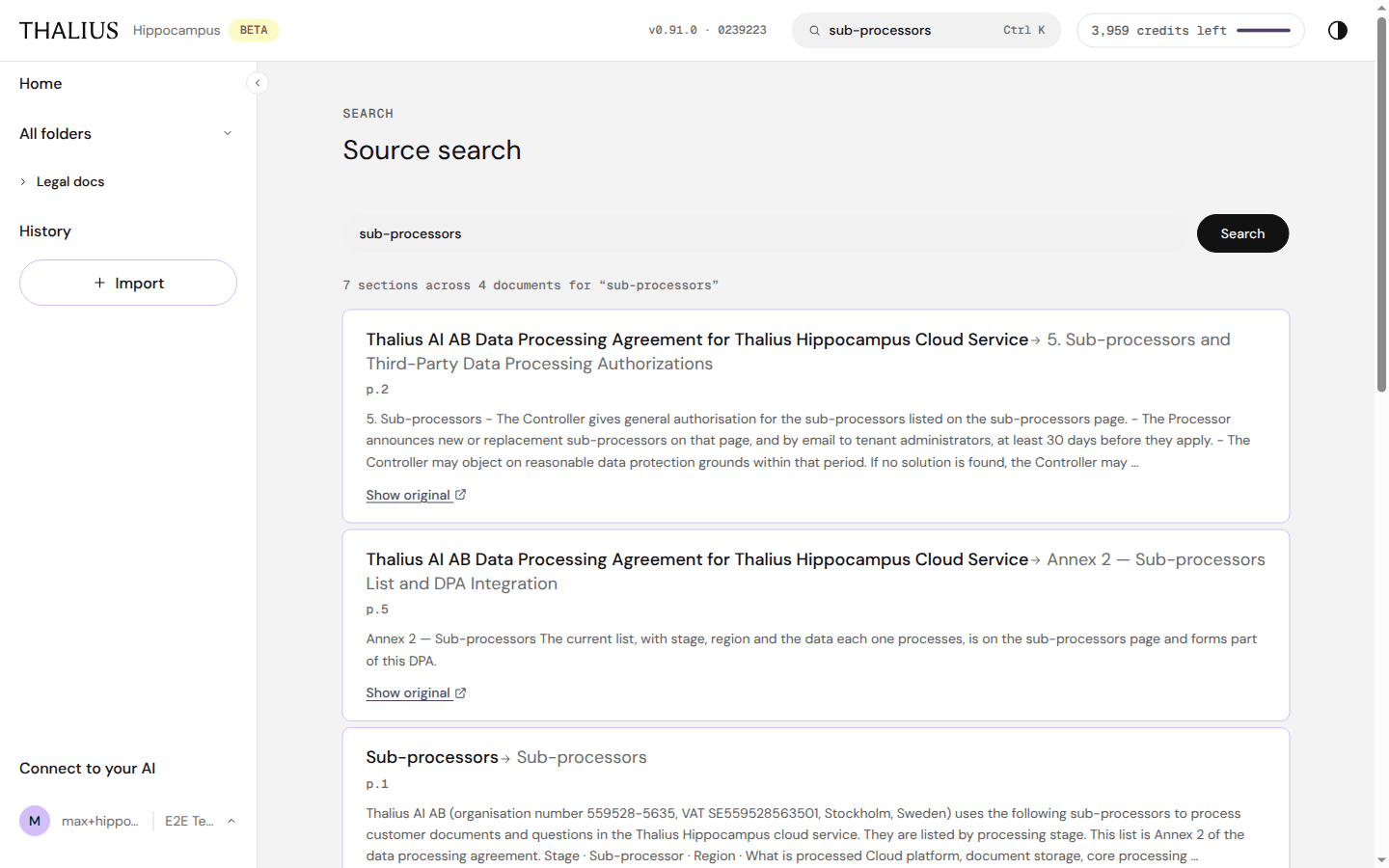
Search finds the exact sections that match your words, without writing an answer. Use it to find a clause, a value or a procedure quickly.
| Control | What it does |
|---|---|
| Search documents (top bar, Ctrl K / ⌘K) | Type and press Enter |
| Search field + Search | Search again on this page |
| N sections across M documents | How many matches |
| Result title (Document → Section) | Opens that section in Hippocampus |
| p.N | Page in the original |
| Show original ↗ | Opens the original at that page in a new tab |
Each search costs credits, like a question; see Credits.
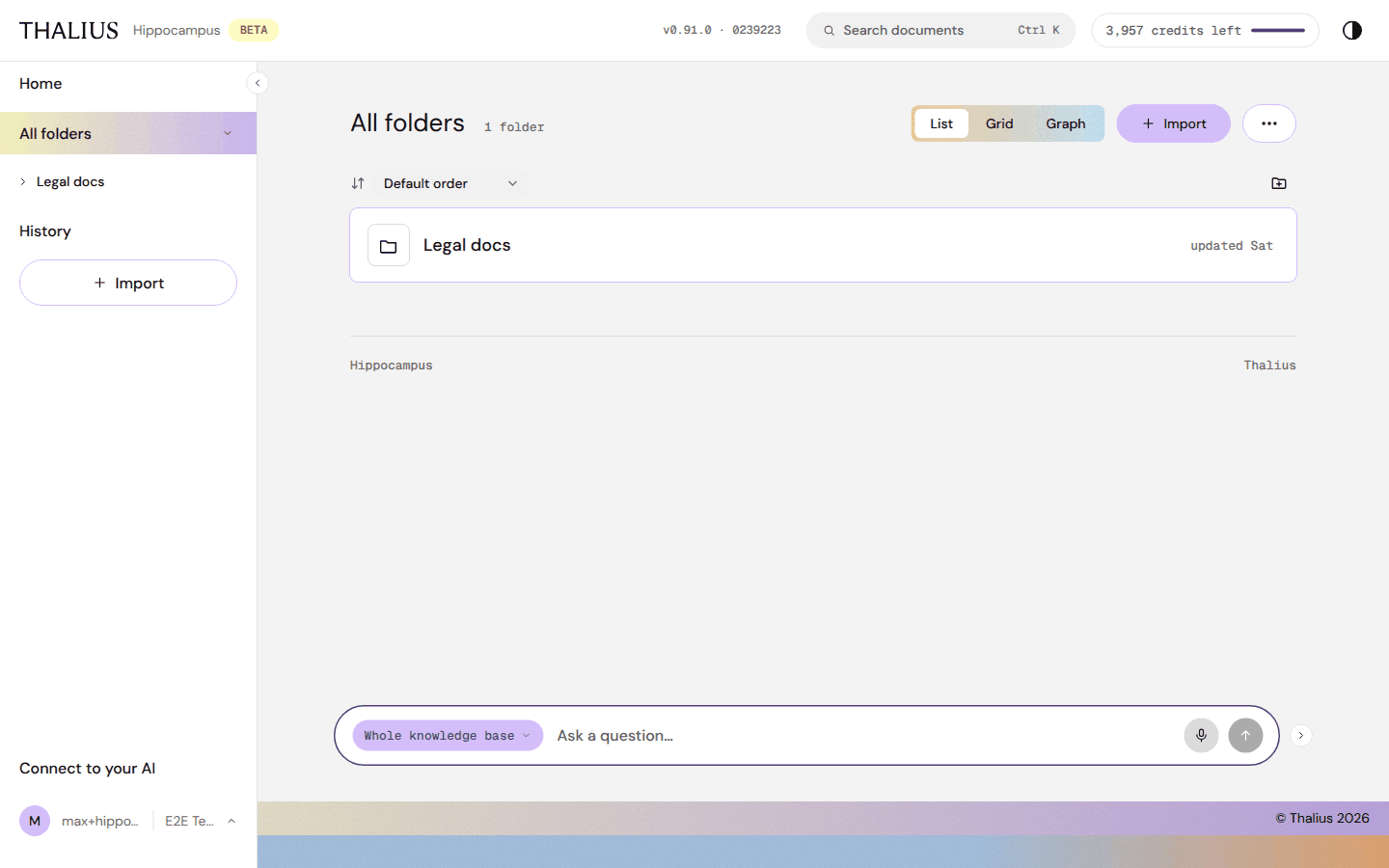
| Control | What it does |
|---|---|
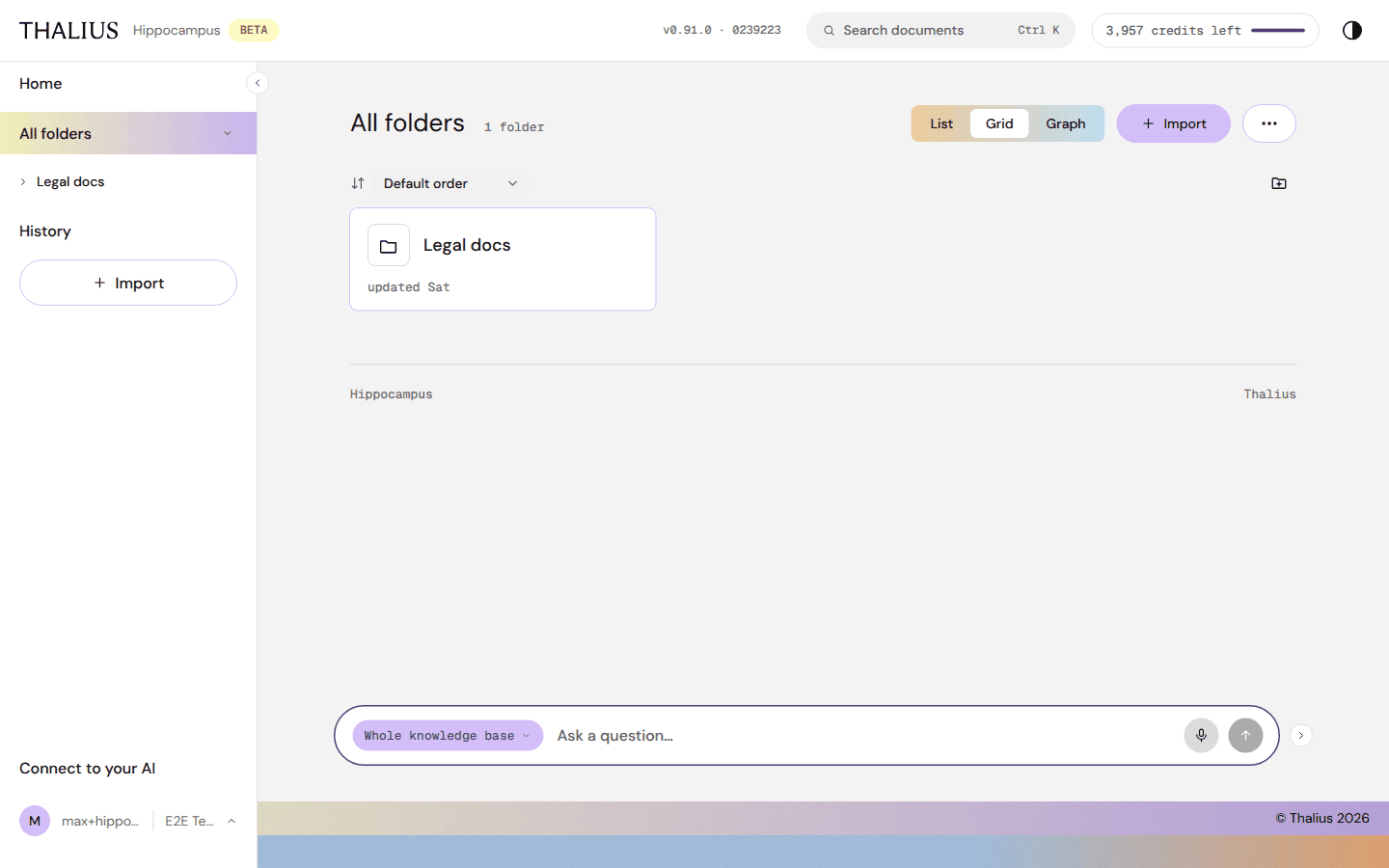
| List / Grid / Graph | Three views of the same folders |
| + Import | Opens Import |
| ⋯ | Folder actions (below) |
| Sort | Default order, Name A–Z, Name Z–A, Recently changed. Remembered for you |
| New folder icon | Creates a top-level folder |
| Folder rows | Open the folder |
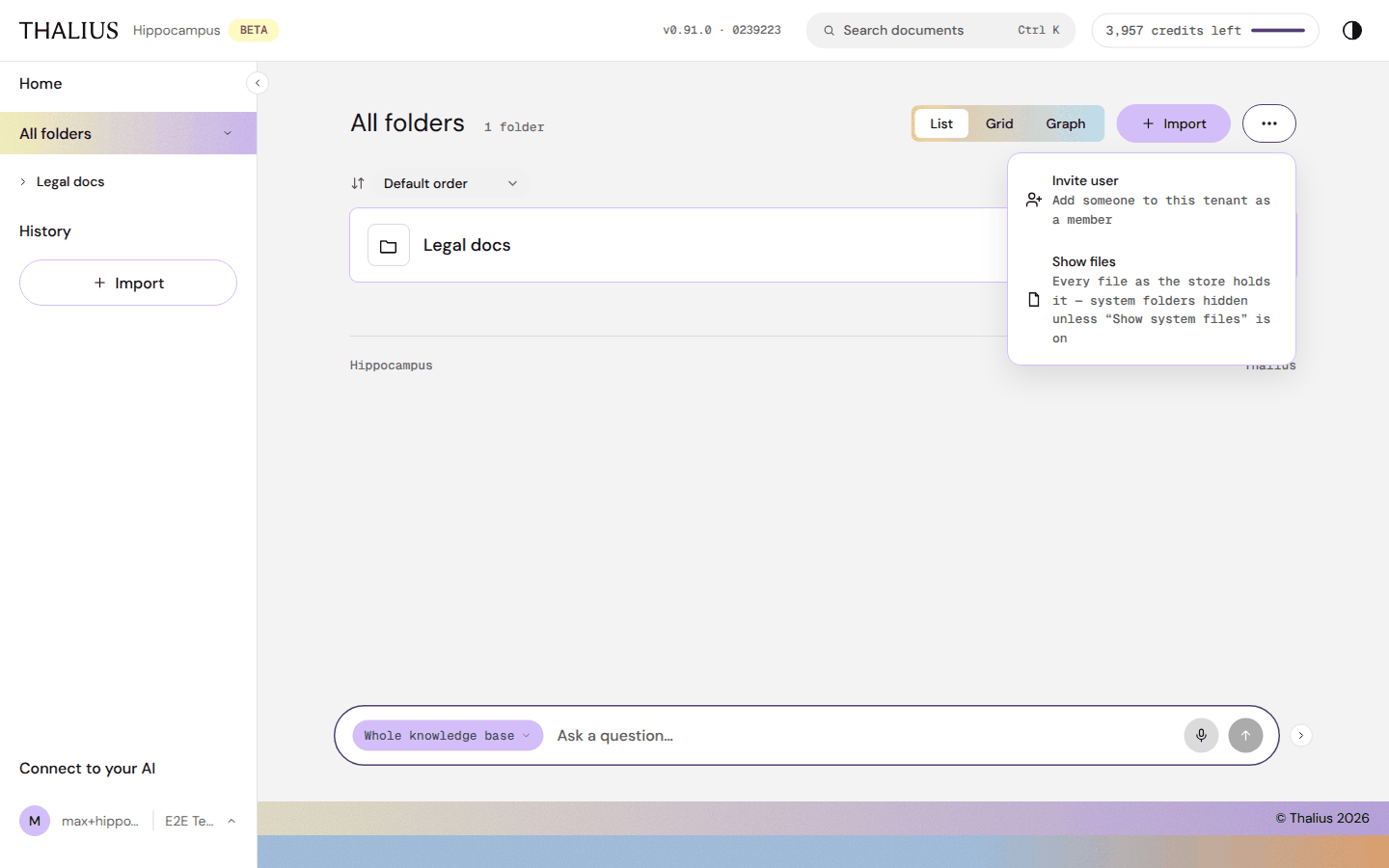
| ⋯ item | Who | What it does |
|---|---|---|
| Invite user | Owner, Starter | Add someone to this tenant as a member; see Invite user |
| Show files | Everyone | Lists every file as stored; Back to the list returns |
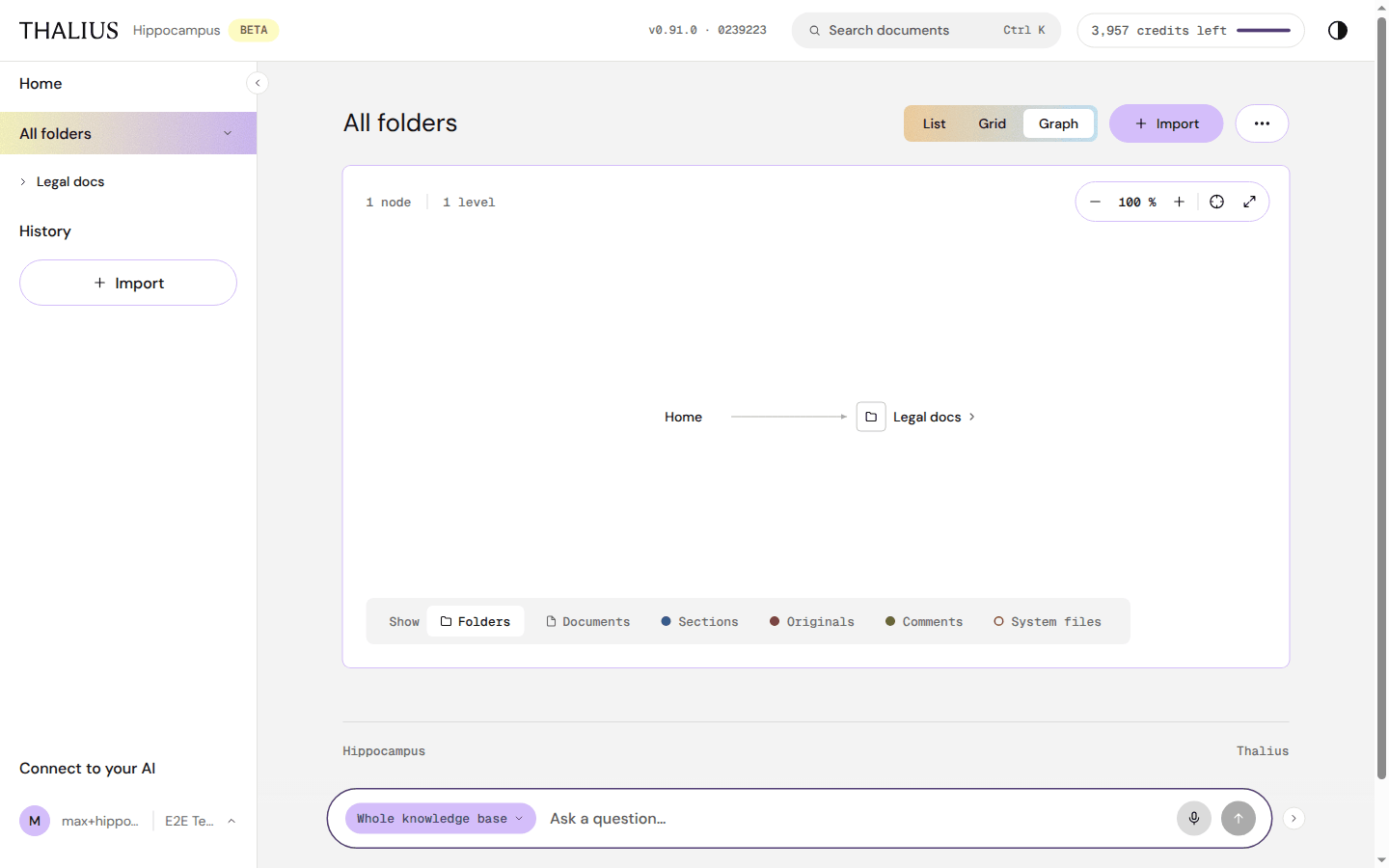
| Control | What it does |
|---|---|
| N nodes · N levels | Size of the tree shown |
| − / % / + | Zoom out, zoom level, zoom in |
| ⊕ | Fit to view |
| ⤢ | Fullscreen. Esc returns |
| Show: Folders, Documents, Sections, Originals, Comments, System files | Choose what the graph shows |
| Mouse | Click: unfold or fold · double-click: open · wheel: zoom · drag: pan |
Selecting a node shows a card with Open →, Original ↗ and Unfold / Fold.
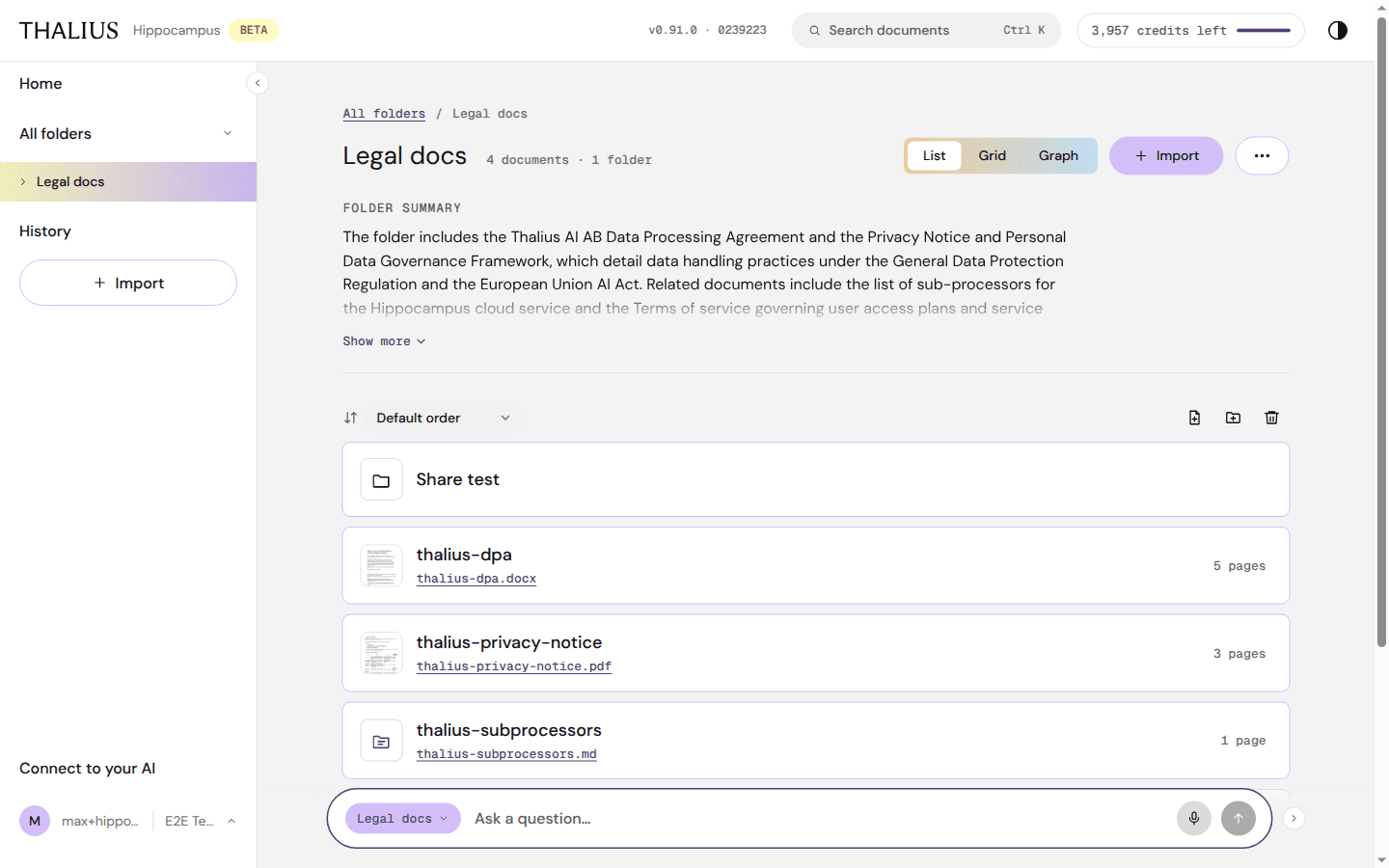
| Control | What it does |
|---|---|
| Breadcrumb (All folders / …) | Go up |
| Title, N documents · M folders | The folder and its contents |
| List / Grid / Graph | Views, as in All folders |
| + Import | Import into this folder (it is preselected) |
| ⋯ | Folder actions (below) |
| Folder summary, Show more | An automatic summary of everything in the folder |
| Sort | As in All folders |
| New document icon | Write a new document here; see Writing documents |
| New folder icon | Create a subfolder |
| Delete folder icon | Delete this folder and everything in it |
| Subfolder rows | Open the subfolder |
| Document rows | Thumbnail of page 1, title, original file name, page count. The title opens the document; the file name opens the original |
| Up one level, Show MD (page foot) | Go to the parent folder; open the page's Markdown in a new tab |
Folder pages also have the docked ask box, scoped to the folder.
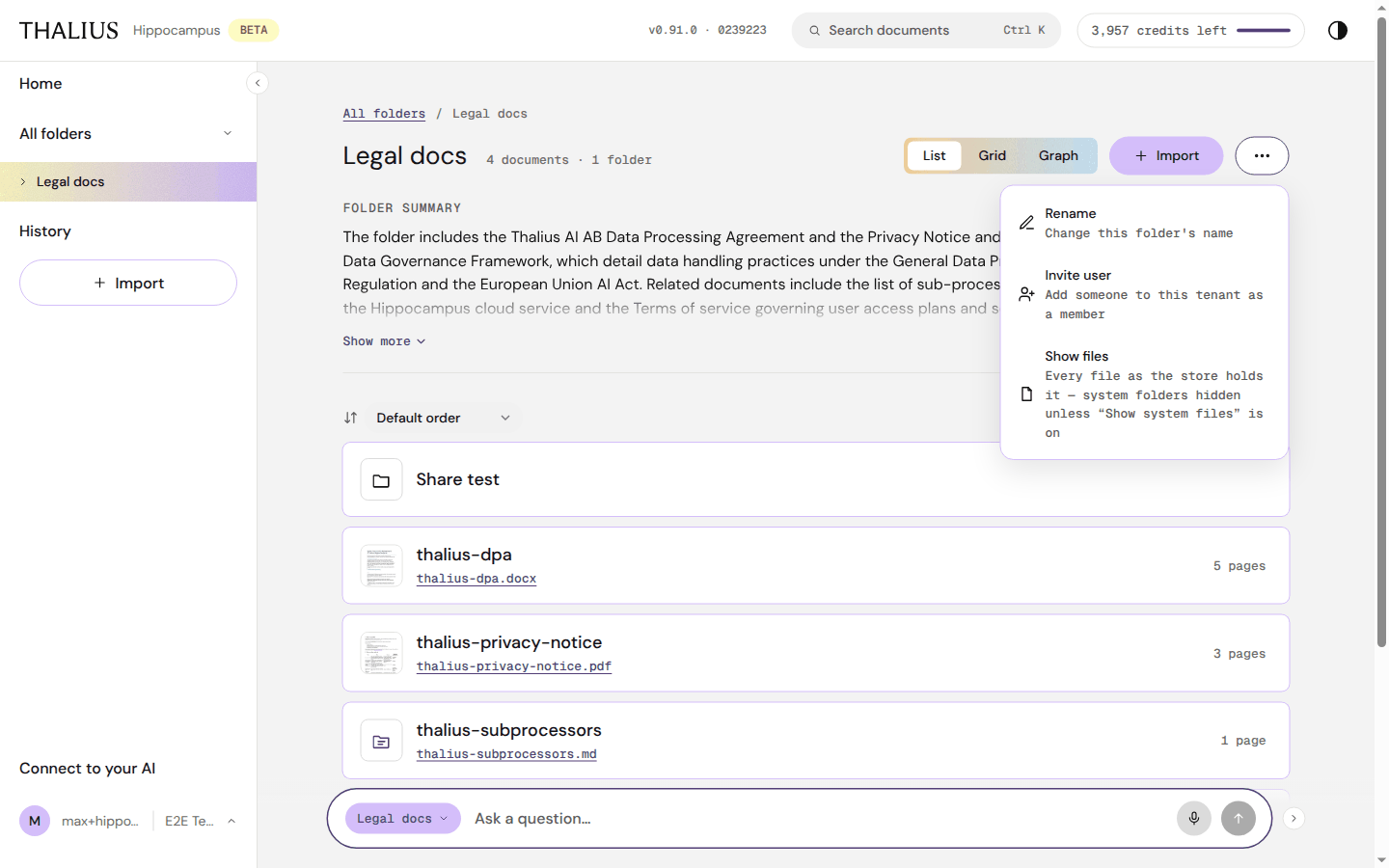
| ⋯ item | Who | What it does |
|---|---|---|
| Rename | Editors | Change this folder's name |
| Invite user | Owner (top-level folders) | Add someone to the tenant |
| Share | Editors (subfolders) | Invite people to this folder; see Share |
| Show files | Everyone | Every file as stored |
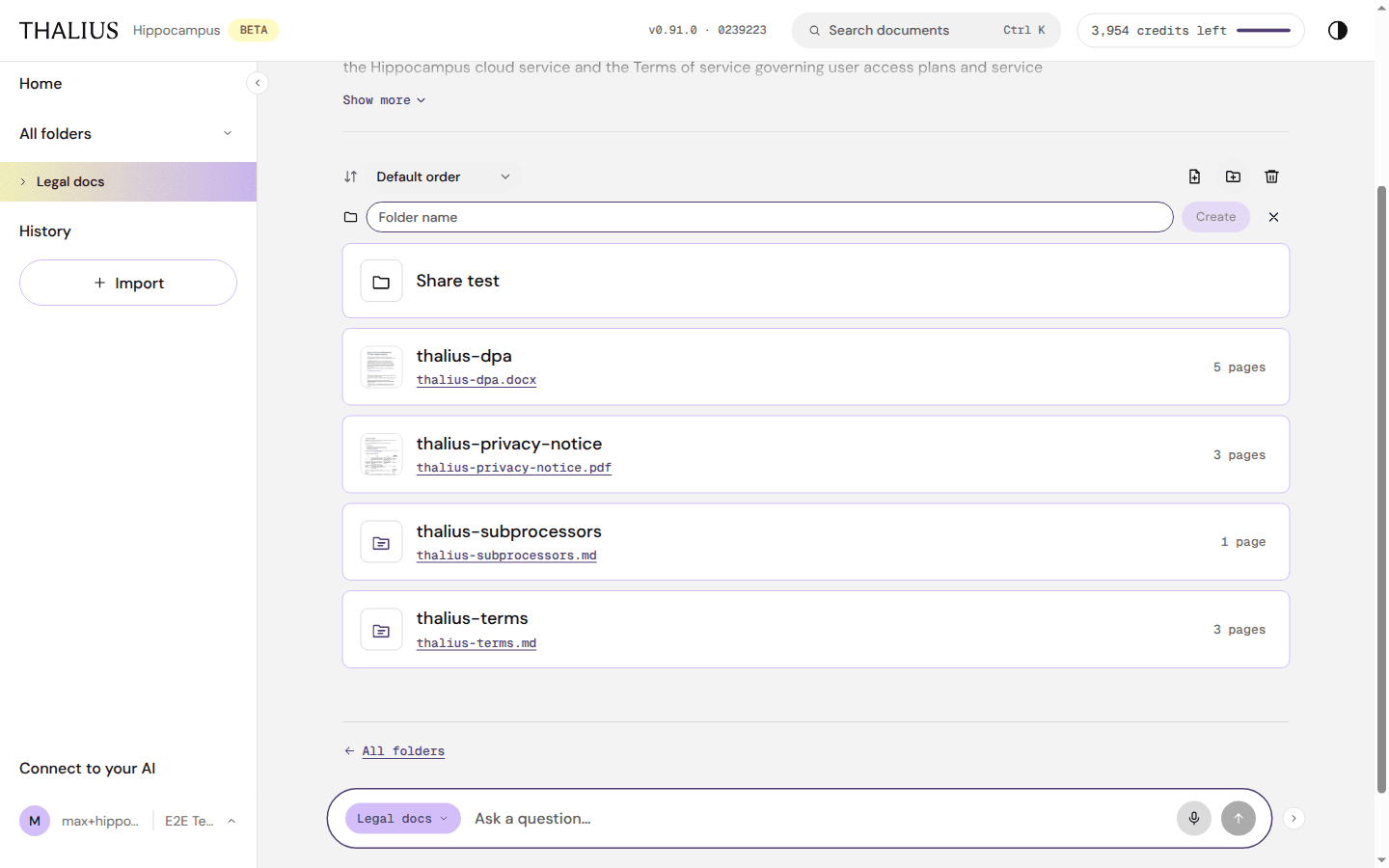
Type a Folder name and press Create; × cancels. New document works the same way with Document name and Create and edit. If a name isn't allowed, Hippocampus suggests one (Use "…"). Folder names starting with _ are reserved.
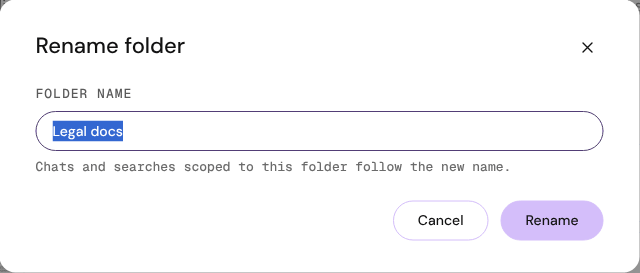
Rename keeps chats and searches that were scoped to the folder working under the new name.
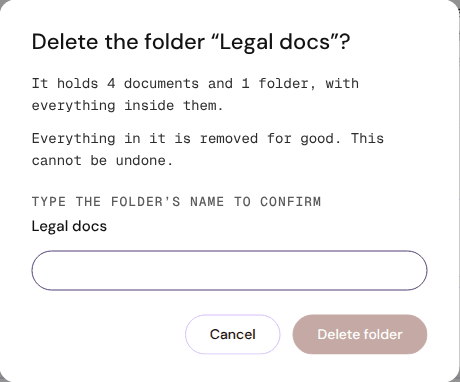
Delete folder removes the folder and everything in it for good. Type the folder's name to enable the button.
Every imported file becomes a document with a summary, sections, a table of contents and its original.
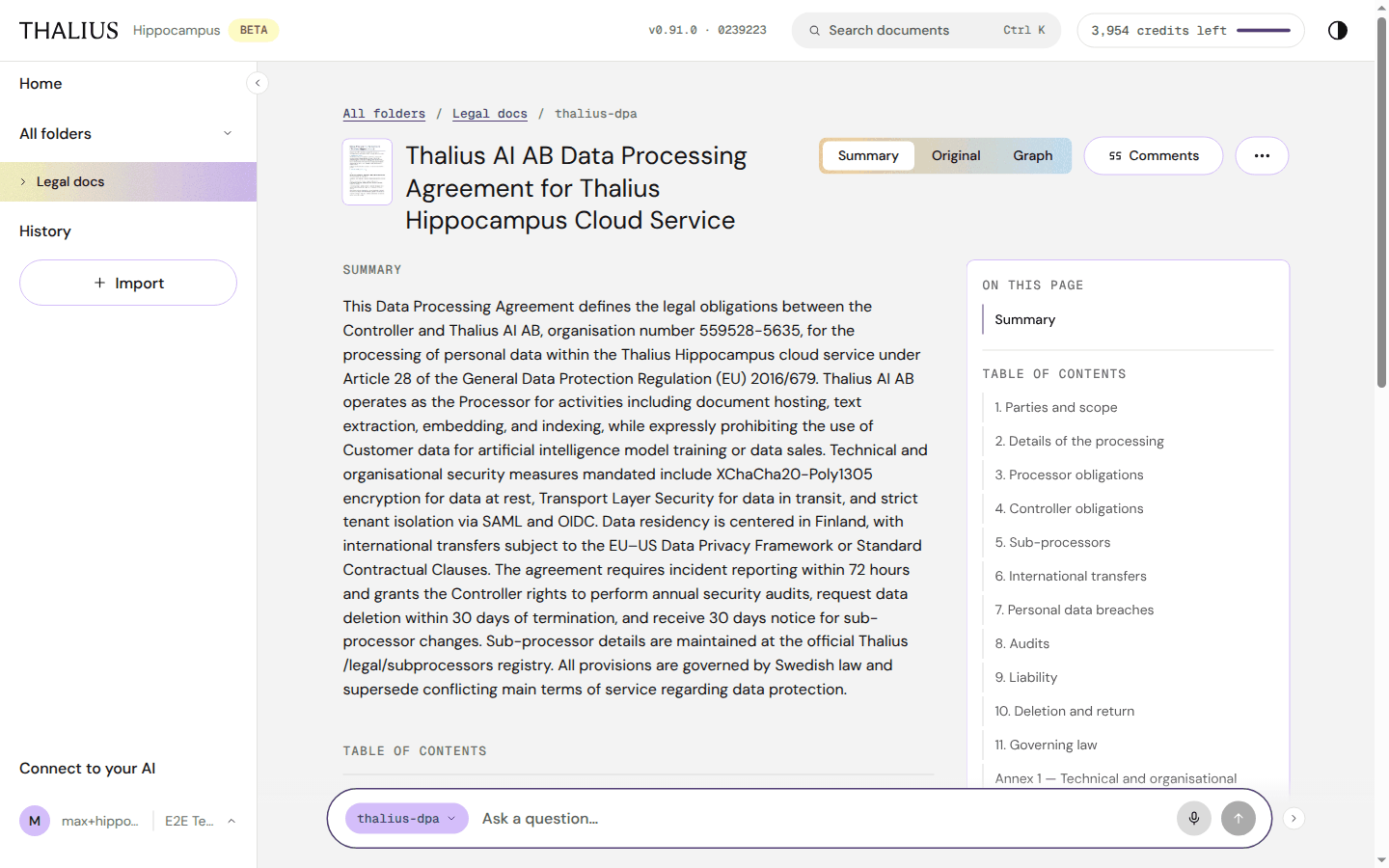
| Control | What it does |
|---|---|
| Breadcrumb | Back to the folder |
| Thumbnail | Opens the original |
| Summary / Original / Graph | Views. Original opens the file beside the page |
| Comments | Shows or hides comments. Remembered for you |
| Contents | Jump to a section (wide screens, with comments shown) |
| ⋯ | Document actions (10.5) |
| Summary text | What the document says, in short |
| Table of contents | Each section. Click to open it in place |
| On this page card | Jump to the summary, the table of contents or a section (wide screens) |
| Edit | Only on documents written in Hippocampus; see section 11 |
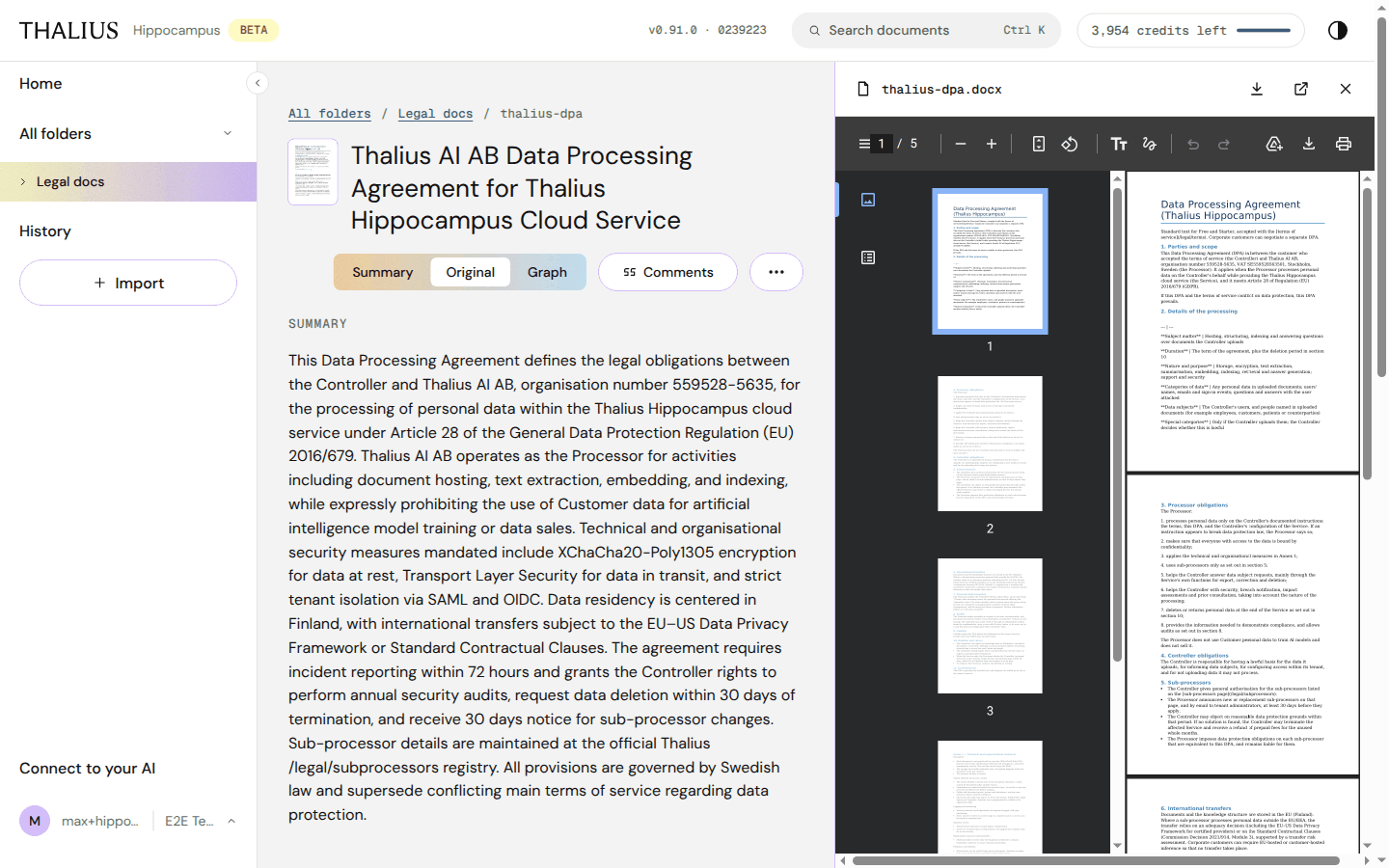
| Control | What it does |
|---|---|
| ↓ | Download the original |
| ↗ | Open it in a new tab |
| × | Close the original |
| Viewer toolbar | Page, zoom, rotate, print: your browser's PDF viewer |
On a phone or tablet the original opens full screen with Back, Zoom out, Zoom in, Download original and Page X of Y.
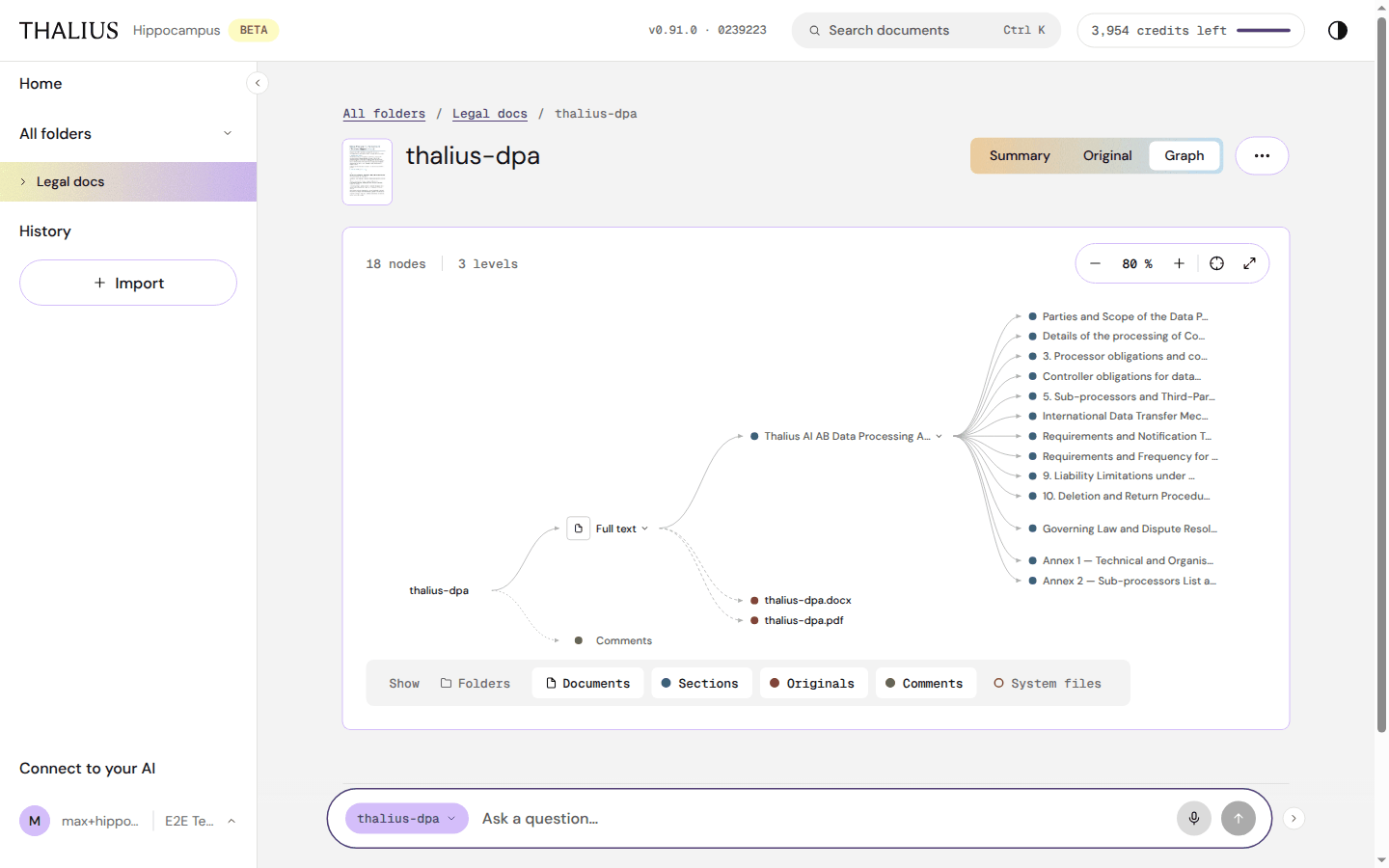
The document's tree: full text, sections, originals and comments. Controls as in Graph view.
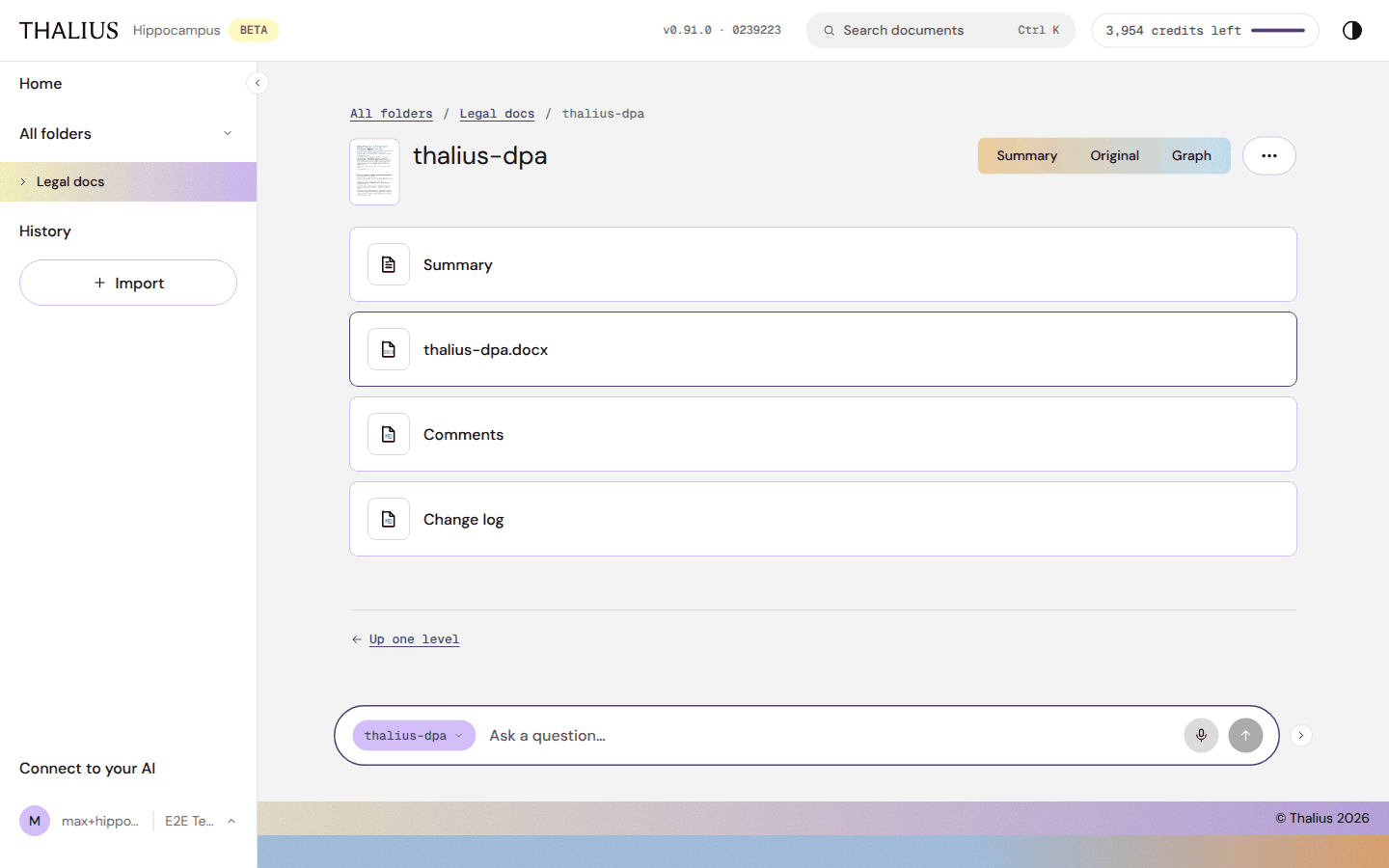
⋯ → Show files lists the document's parts: Summary, the original (as uploaded), Comments and Change log. ⋯ → Back to the summary returns.
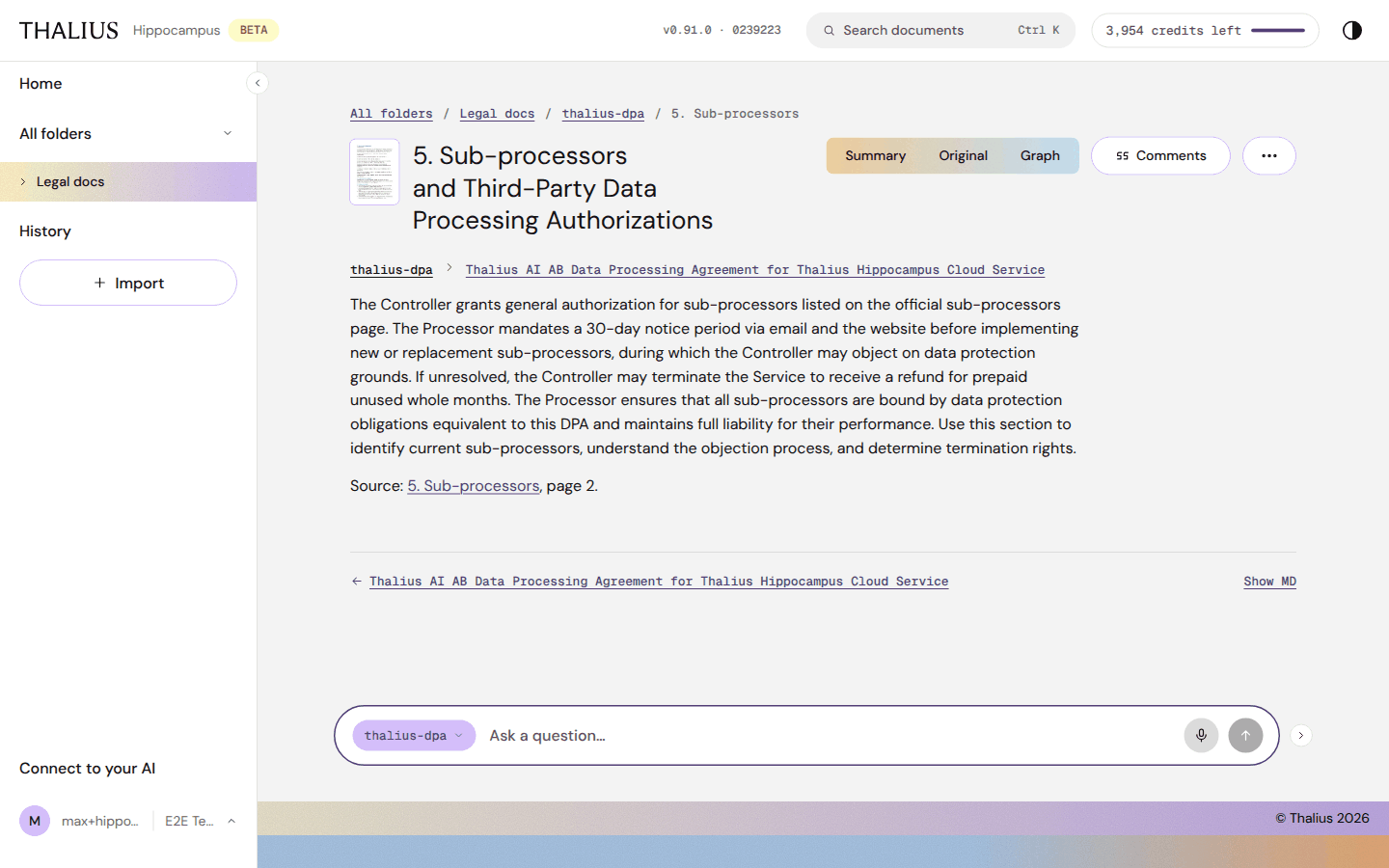
Each section has its own page: its text, the page it came from (Source: … page N) and a link back to the document. You can ask about it with the docked ask box.
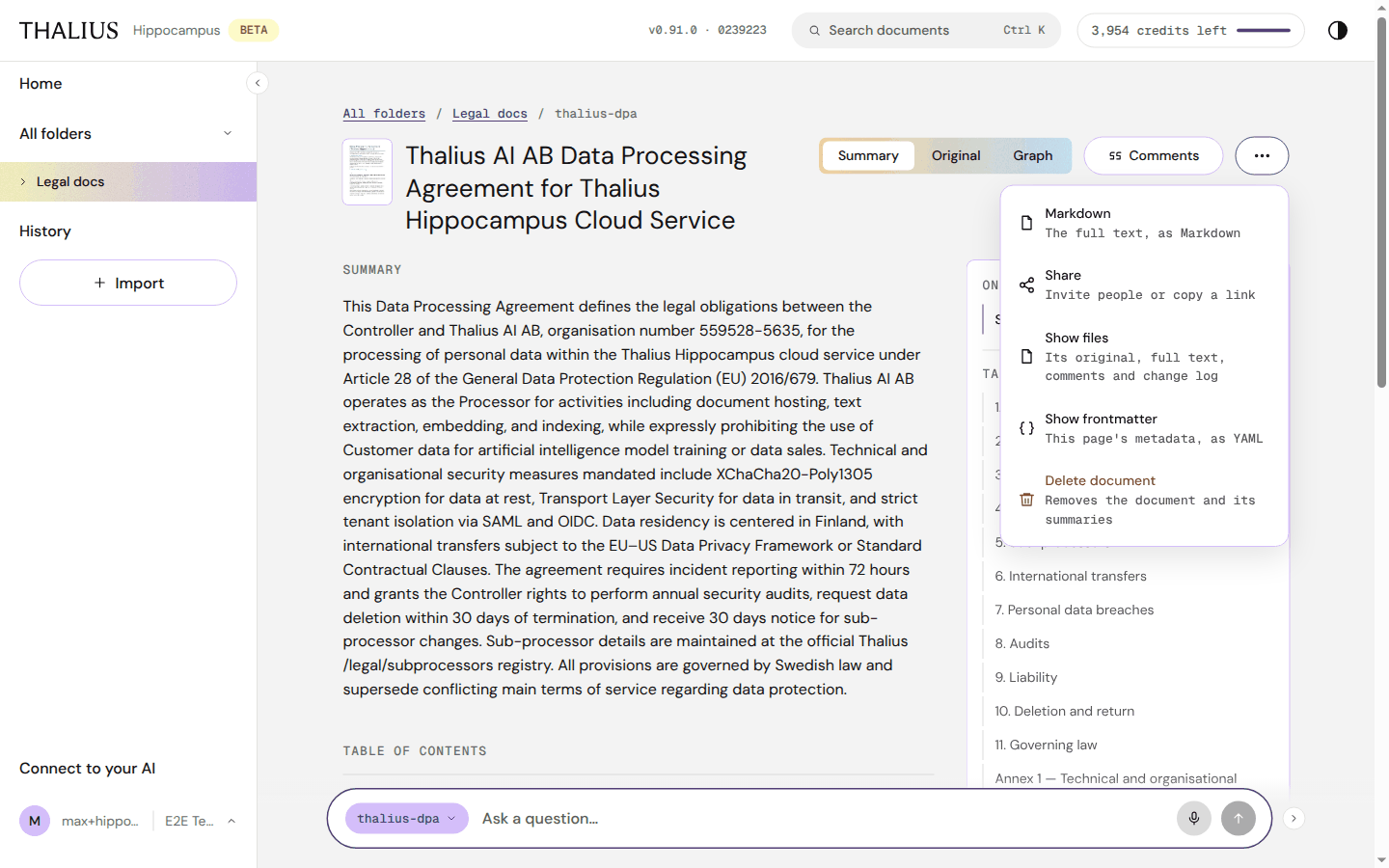
| Item | What it does |
|---|---|
| Markdown | The full text, as Markdown |
| Share | Invite people to this document; see Share |
| Show files | Its original, full text, comments and change log |
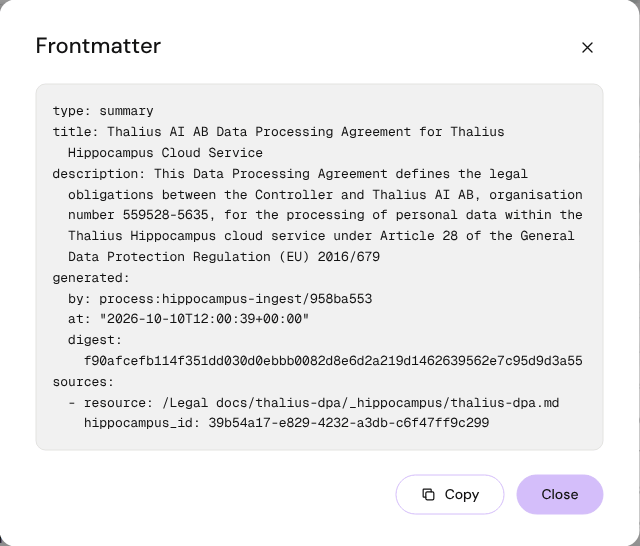
| Show frontmatter | The page's metadata as YAML, with Copy and Close |
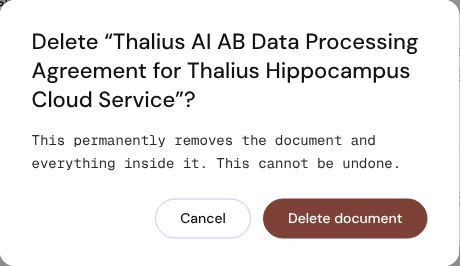
| Delete document | Removes the document and its summaries, after you confirm |
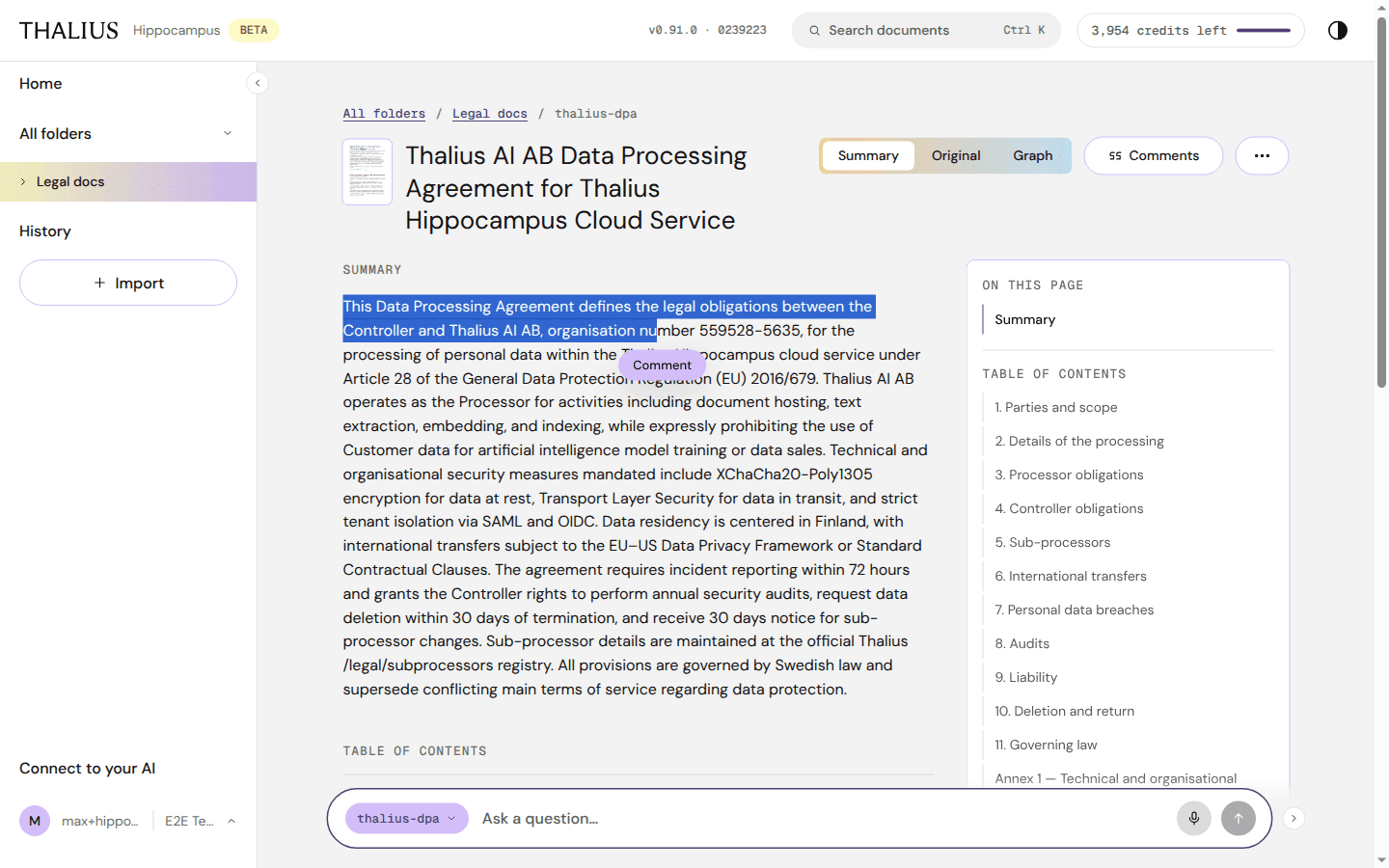
You need edit rights on the document to comment.
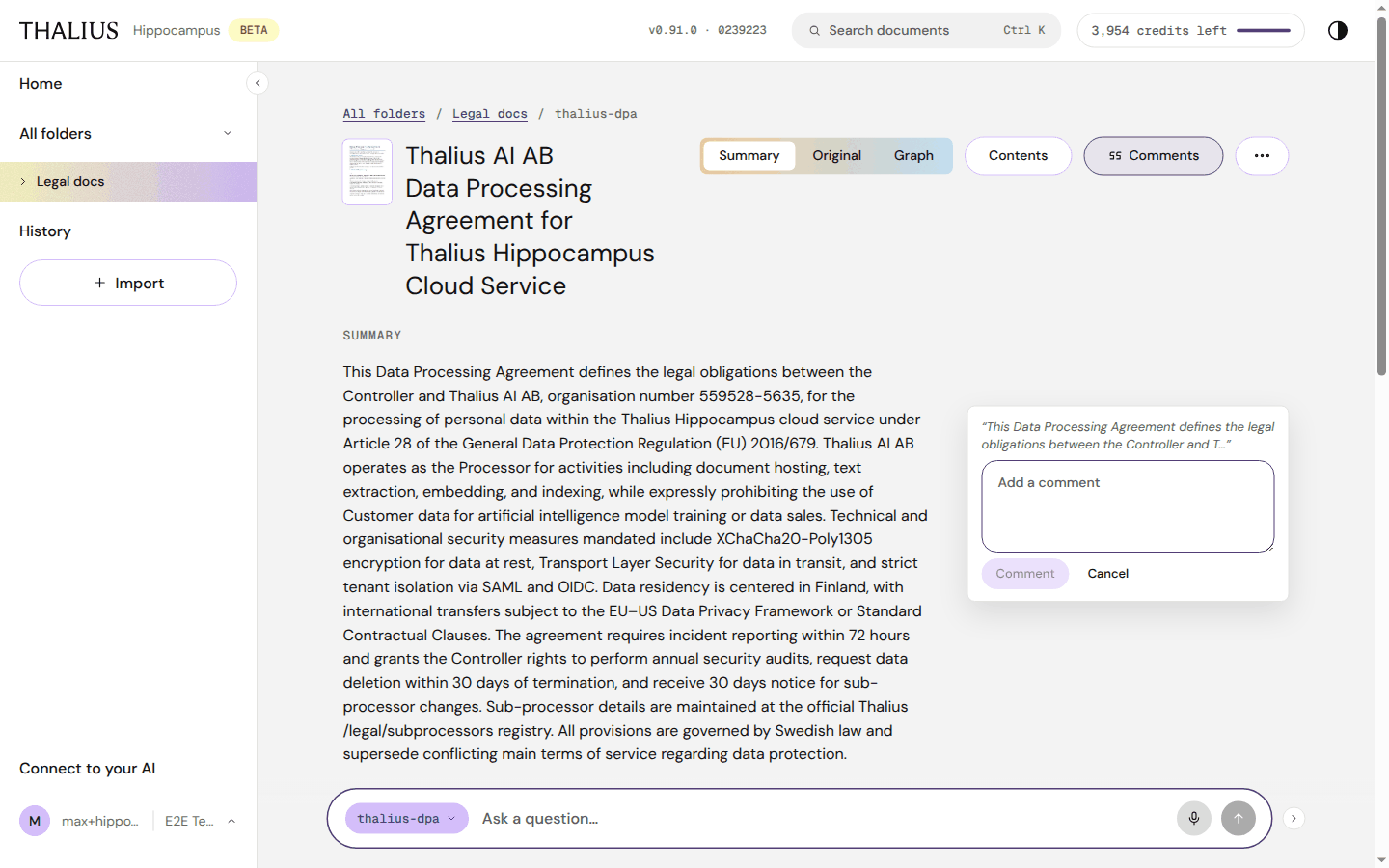
| Control on a comment | What it does |
|---|---|
| Reply | Answer in the thread |
| Resolve / Reopen | Mark the thread done, or open it again |
| Edit, Delete | On your own comments and replies |
On wide screens comments sit in the margin. On narrower screens highlighted passages show a count; click to open the thread. If the commented text was later removed, the comment shows The passage is gone or is listed under Detached.
Create a document with New document in a folder (see 9.1), then Create and edit.
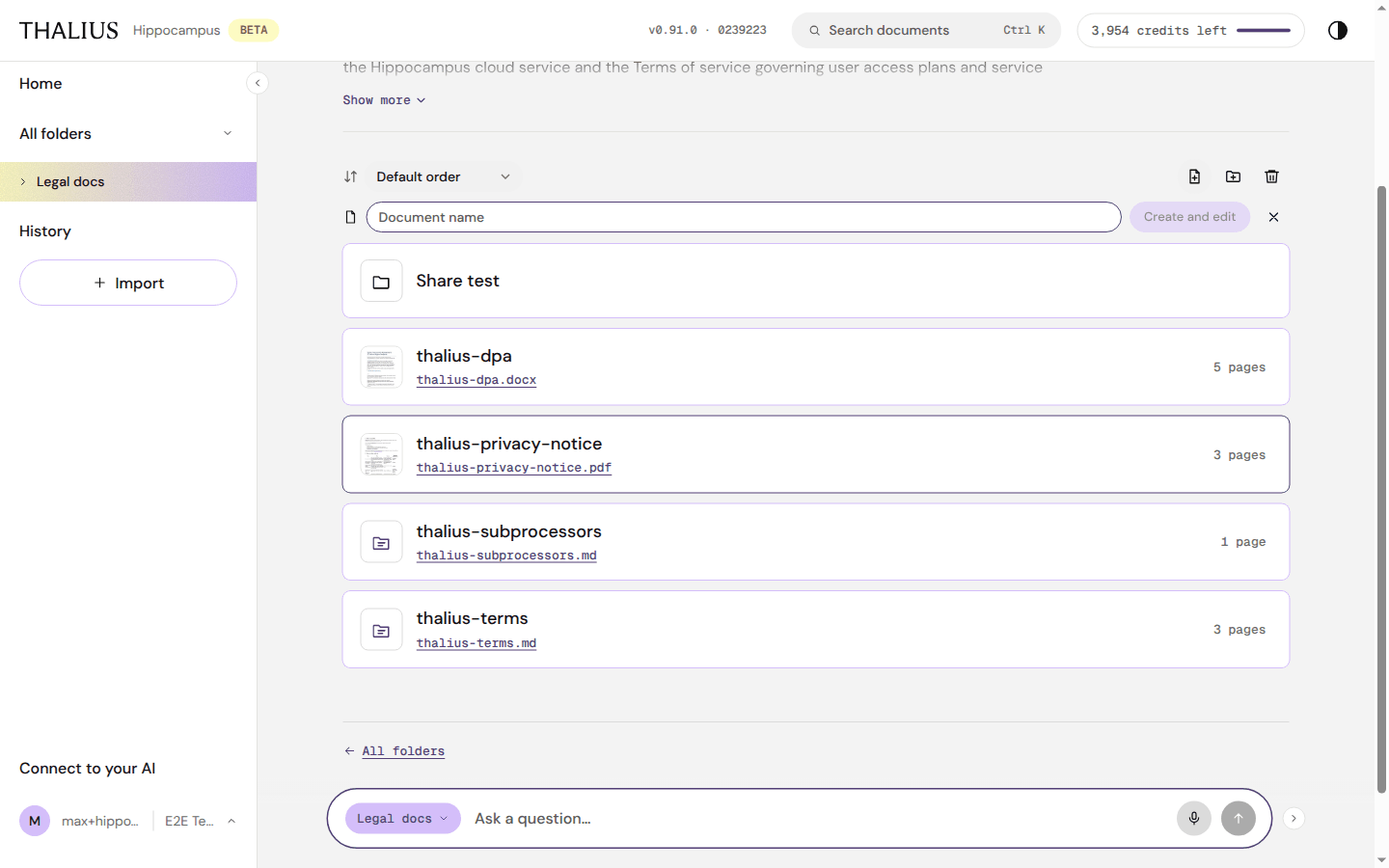
| Editor control | What it does |
|---|---|
| Visual / Markdown | Edit formatted text, or the raw Markdown |
| Paragraph, H1, H2, H3 | Text style |
| Bold (⌘B / Ctrl B), Italic (⌘I / Ctrl I), Inline code, Link (⌘K / Ctrl K) | Inline formatting |
| Bulleted list, Numbered list, Quote, Code block, Horizontal rule | Blocks |
| Edit Frontmatter | Tags and other metadata |
| Cancel | Leave. With unsaved changes it asks Keep editing or Discard changes |
| Save | Saves and returns to the page |
After saving, search finds the new text in under a minute and the summary refreshes in a few minutes.
Imported documents can't be edited this way: re-import the corrected file instead.
Open it from + Import in the side menu, on Home or on a folder.
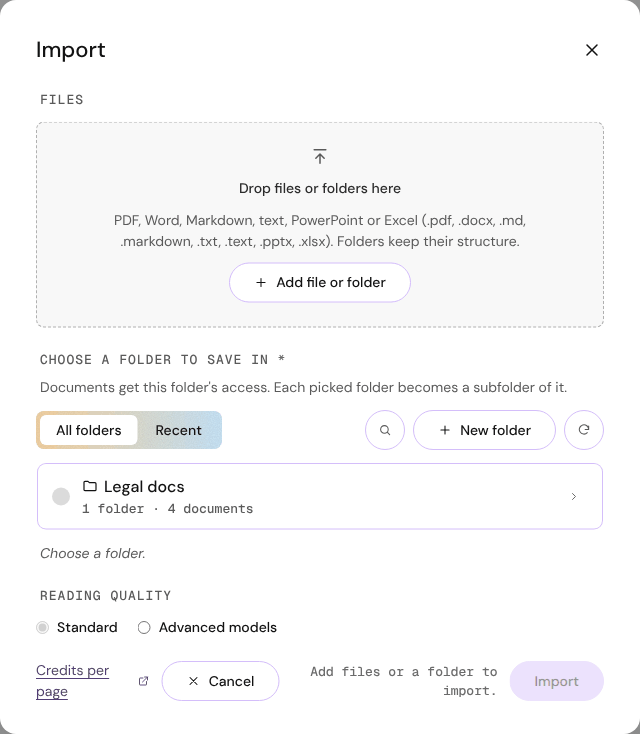
| Control | What it does |
|---|---|
| Drop zone | Drop files or whole folders. Folders keep their structure |
| + Add file or folder | Choose files or Choose folder |
| Choose a folder to save in (required) | Where the documents go. They get this folder's access; each folder you add becomes a subfolder of it |
| All folders / Recent | Pick from the tree, or from folders you imported into before |
| 🔍 | Search folders (Ctrl K / ⌘K) |
| + New folder | Create the destination folder now (it is made when you press Import) |
| ↻ | Reload the folders |
| Folder rows: ○, › | Select a folder; open its subfolders |
| Reading quality: Standard / Advanced models | Advanced uses stronger models for hard pages such as scans, tables and formulas, at more credits per page. Locked on Free |
| Credits per page ↗ | The tariff |
| Cancel | Close without importing |
| Import | Start. The hint beside it says what's still missing |
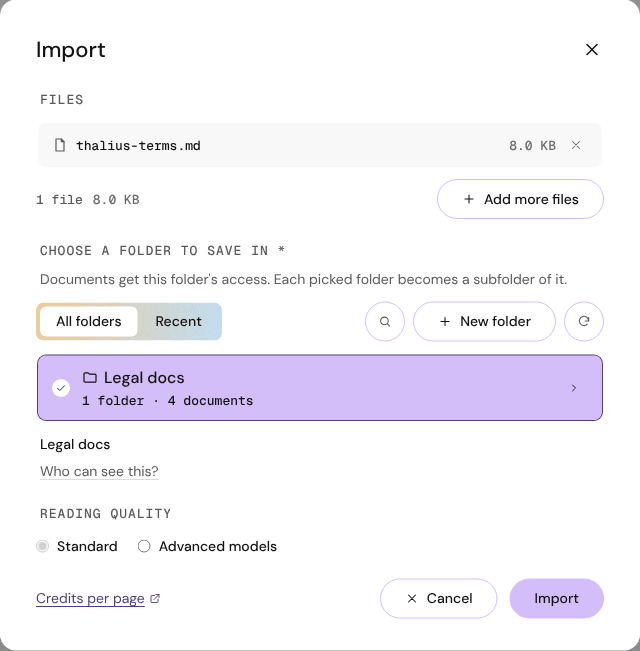
| After choosing files | What it does |
|---|---|
| File list, × | Leave a file or folder out |
| + Add more files | Add to the list |
| Who can see this? | Shows how many people will see the documents, e.g. Visible to 2 people with access to the whole tenant |
Accepted files: PDF, Word (.docx), PowerPoint (.pptx), Excel (.xlsx), Markdown (.md, .markdown) and text (.txt, .text).
| Limit | Value |
|---|---|
| File size | 95 MB per file |
| Files per pick | 5,000 (import the rest in another round) |
| Folder depth | 32 levels |
| Left out automatically | Empty files, hidden and lock files (.DS_Store, Thumbs.db, ~$ files) |
While importing each file shows its steps (reading, extracting the structure, splitting into sections, summarizing, storing, indexing) and the time taken. Cancel import stops files that haven't started; files already being processed finish. You can close the dialog: the side menu shows Importing n/N.
When done: N of M files imported successfully, a per-file list (failed files show why) and Done.
| Note in the dialog | Meaning / what to do |
|---|---|
| N files couldn't be read | Usually online-only files (OneDrive, Google Drive, Dropbox). Make them available offline (Windows: Always keep on this device; Mac: Download Now), then Retry these files |
| Already imported | The same file is already there |
| …shared differently from the destination | Confirm with Import into this folder anyway, or choose another folder |
| Its full text was edited by hand | Import and replace overwrites those edits; Skip this file keeps them |
| Your last import stopped before it finished | Show the files to see what's missing; Forget this import clears the note |
Open it from ⋯ → Share on a subfolder or a document.
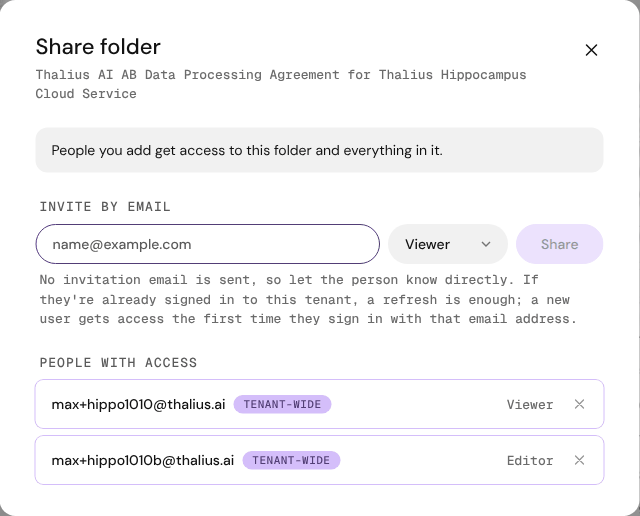
| Control | What it does |
|---|---|
| Invite by email | The person's email address |
| Viewer / Editor | Viewer reads and asks. Editor can also import, write, rename, comment and delete |
| Share | Gives access to this folder (and everything in it) or this document |
| People with access | Everyone who can open it, with where their access comes from: This folder, From {folder}, Tenant-wide, Group, Inherited |
| × | Remove access (asks first) |
Share sends no email: tell the person yourself. If they're signed in to this tenant, a page refresh is enough.
On Free and Starter, Share works for people who are already members of your tenant. Add someone new with Invite user first.
Adds a person to your tenant. Owners only, on Starter. Open it from ⋯ → Invite user on All folders or a top-level folder, or from Settings → Members.
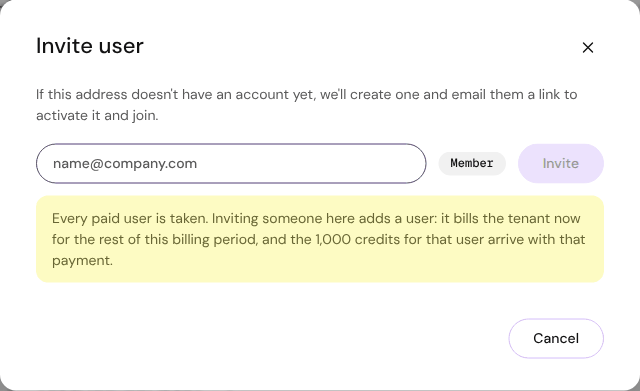
| Control | What it does |
|---|---|
| Email field | The person's email |
| Member | Their role |
| Invite | Sends the invitation email. A person without an account gets one, with a link to activate it and join |
| Yellow note | Shown when every paid user is taken: the new user is billed now for the rest of the billing period, and their 1,000 credits arrive with that payment |
| Cancel / Done | Close |
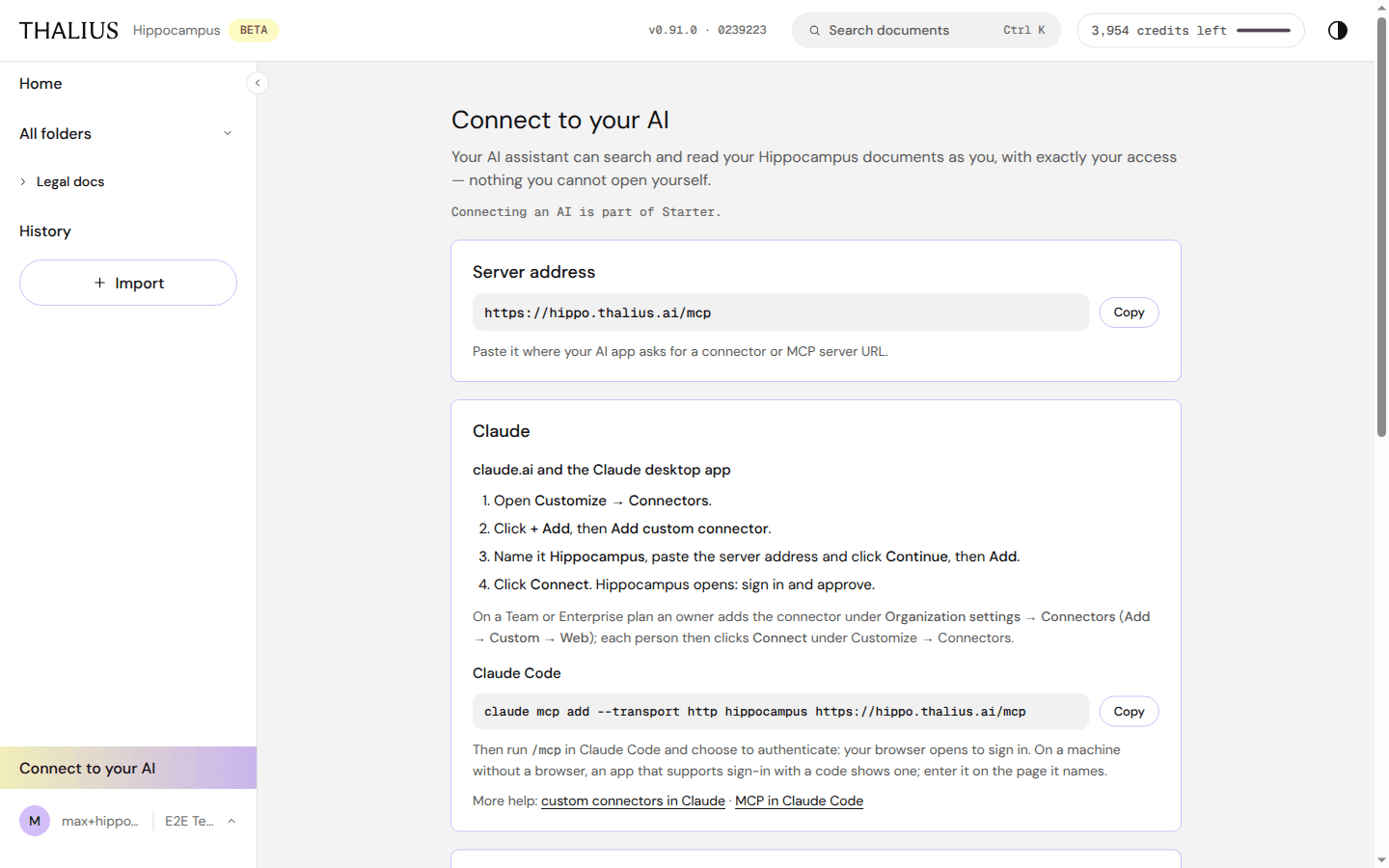
Use your Hippocampus documents from Claude or ChatGPT over MCP. The assistant searches and reads as you, with exactly your access. Part of Starter and Corporate.
| Control / card | What it does |
|---|---|
| Server address + Copy | https://hippo.thalius.ai/mcp. Paste it where your AI app asks for a connector or MCP server URL |
| Claude (claude.ai, desktop app) | Customize → Connectors → + Add → Add custom connector → name it Hippocampus, paste the address → Continue, Add → Connect, then sign in and approve. On Team or Enterprise plans an owner adds it under Organization settings → Connectors first |
| Claude Code + Copy | claude mcp add --transport http hippocampus https://hippo.thalius.ai/mcp, then run /mcp and authenticate |
| ChatGPT | Turn on developer mode (Settings → Apps → Advanced settings), create an MCP app named Hippocampus with OAuth, then sign in and approve |
| When you approve | Hippocampus shows the app, what it asks to do and your account. In several tenants, you choose which one it connects to |
| Connected apps + Disconnect | Every app connected in this tenant. Disconnect ends its access at once. Removing the connector inside Claude or ChatGPT is not enough on its own |
What the assistant looked up appears under History → AI connector activity. On Free the page shows See plans, and the Copy button is locked.
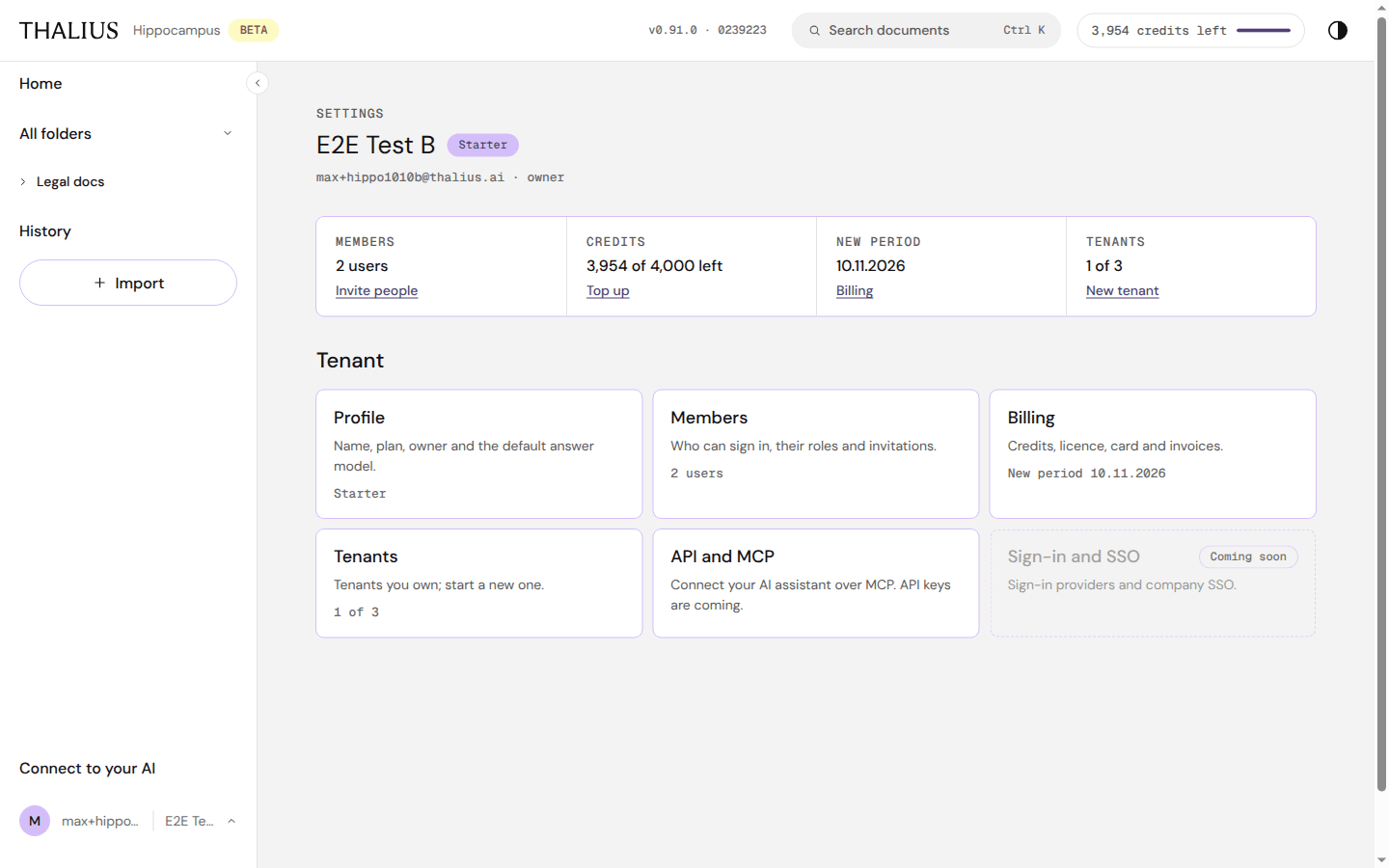
Owners and admins open it from account menu → Settings. Members don't see it.
| Control | What it does |
|---|---|
| Header | Tenant name, plan, your email and role |
| Tenant tabs (if you have two or more tenants) | Switch the tenant you're managing |
| Members · Invite people | Users in the tenant; opens Members |
| Credits · Top up / Upgrade | Credits left. Top up on Starter; Upgrade on Free |
| New period · Billing | When credits renew; opens Billing |
| Tenants · New tenant | Tenants you own; creates one (16.6) |
| Profile | Name, plan, owner, default answer model |
| Members | Users, roles and invitations |
| Billing | Credits, licence, card and invoices |
| Tenants | Tenants you own |
| API and MCP | Points to Connect to your AI. API keys are coming |
| Sign-in and SSO | Coming soon (Corporate) |
| Control | What it does |
|---|---|
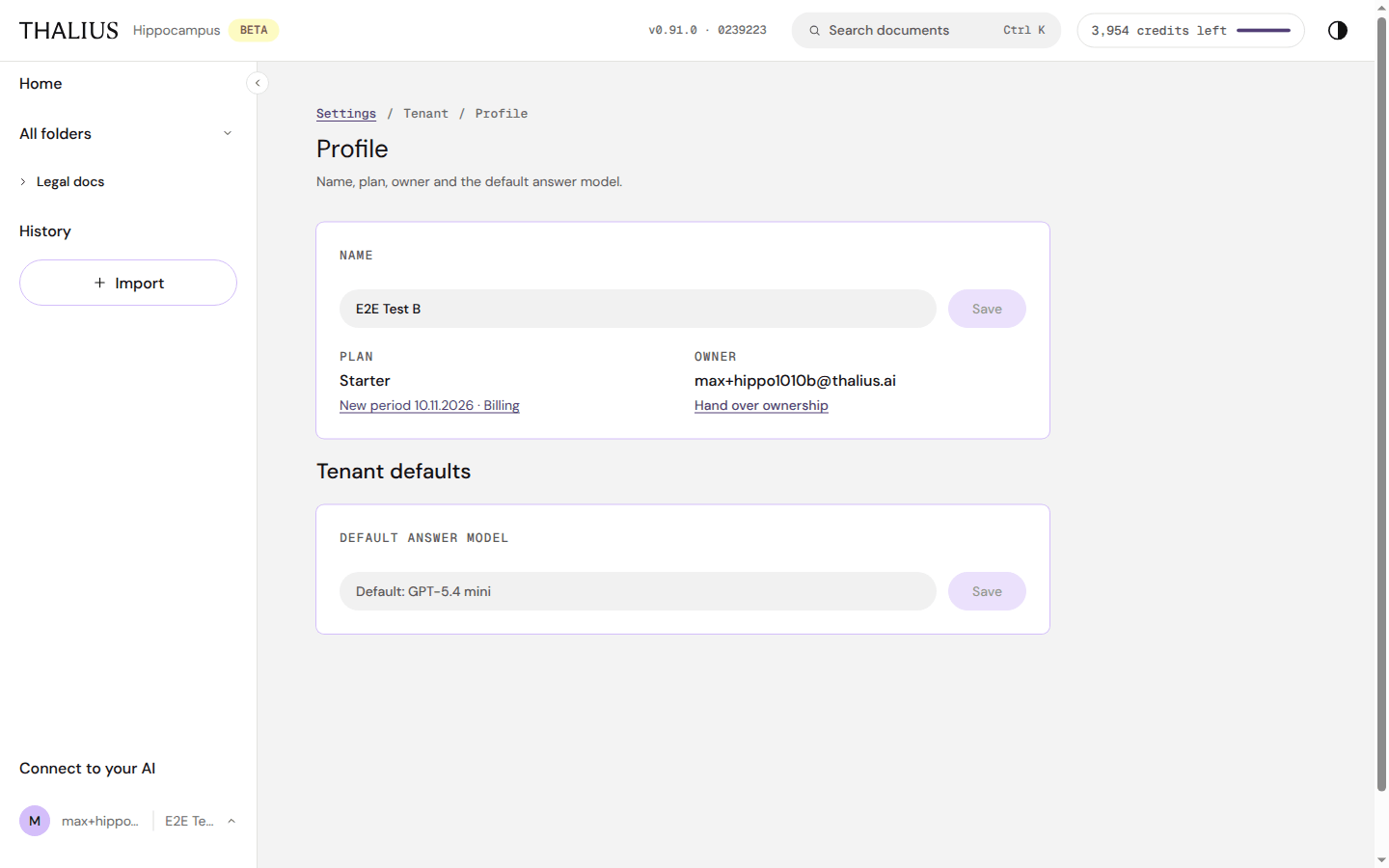
| Name + Save | Renames the tenant |
| Plan · New period … · Billing | Your plan; opens Billing |
| Owner · Hand over ownership | Makes another member the owner (needs a second member) |
| Default answer model + Save | The model that writes answers for everyone in the tenant |
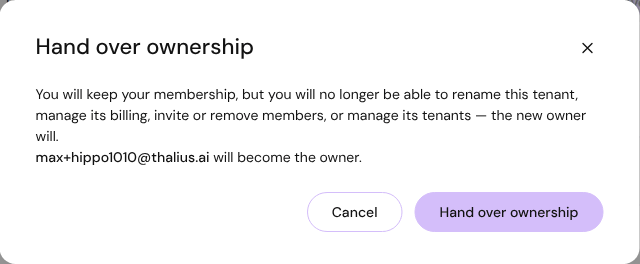
You stay a member, but the new owner takes over renaming, billing, members and tenants.
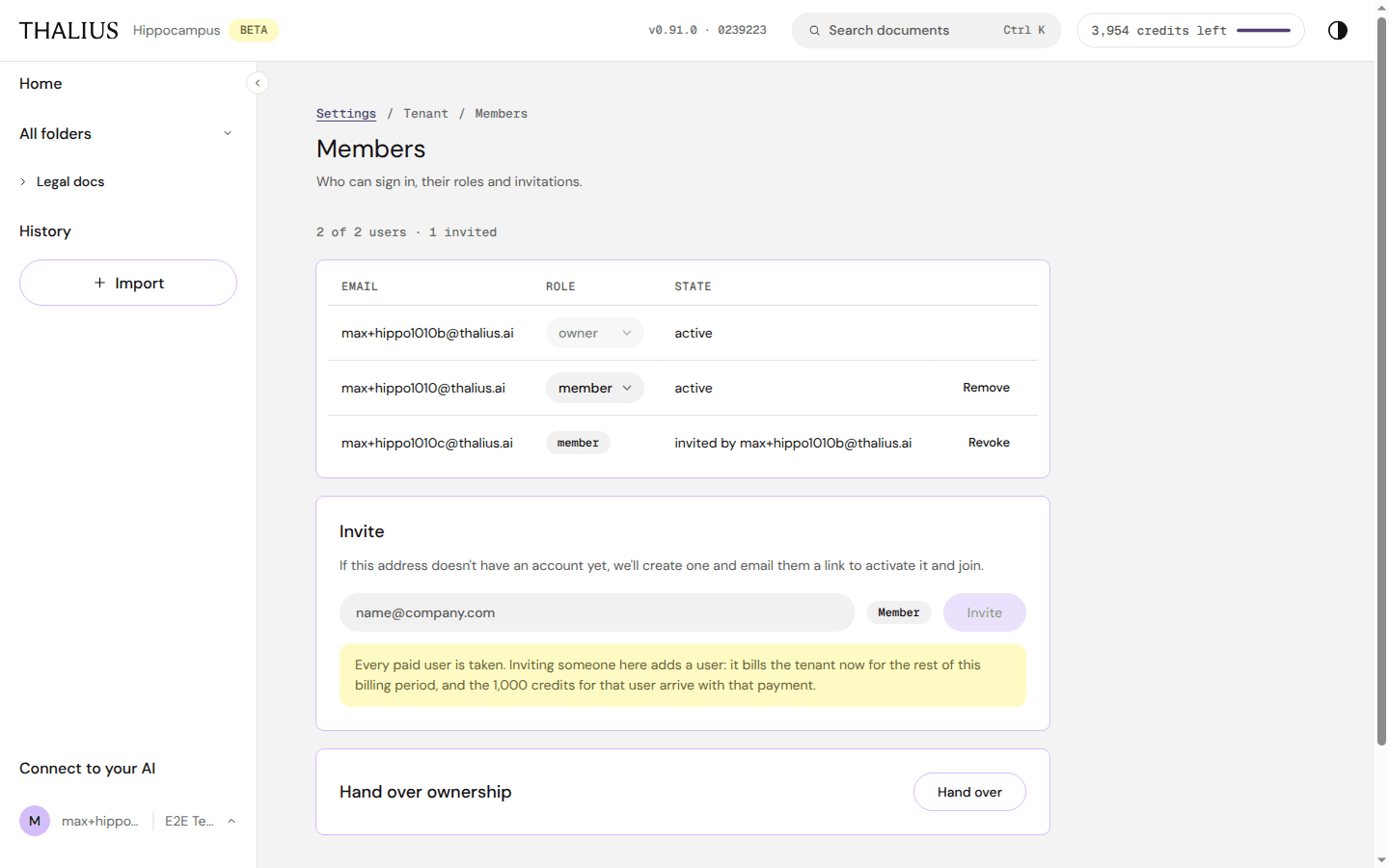
| Control | What it does |
|---|---|
| N of M users · N invited | Paid users in use, and open invitations |
| Role select | Change a member's role. The owner's role can't be changed here |
| State | active or invited by … |
| Remove | Removes a member (asks first) |
| Revoke | Cancels an invitation (asks first) |
| Invite card | Same as Invite user |
| Hand over ownership · Hand over | As in Profile |
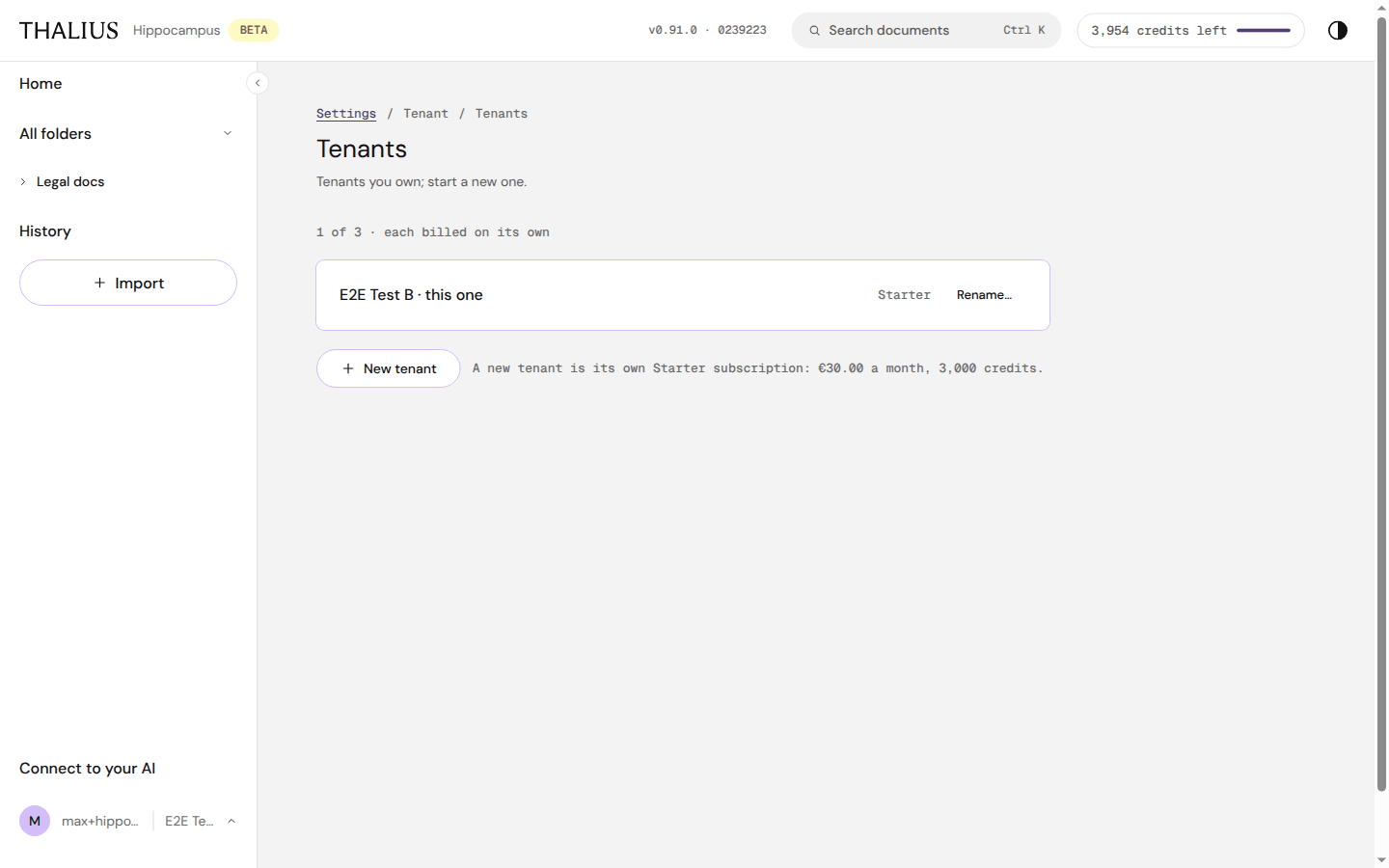
| Control | What it does |
|---|---|
| N of 3 · each billed on its own | Tenants you own, out of your plan's limit |
| Rename… | Renames a tenant (inline Save / Cancel) |
| Delete | Deletes another tenant you own (type its name to confirm). Not the one you're in |
| + New tenant | Creates a tenant: its own Starter subscription, €30.00 a month, 3,000 credits |
Owners only. Open it from the account menu, the credits pill, or Settings.
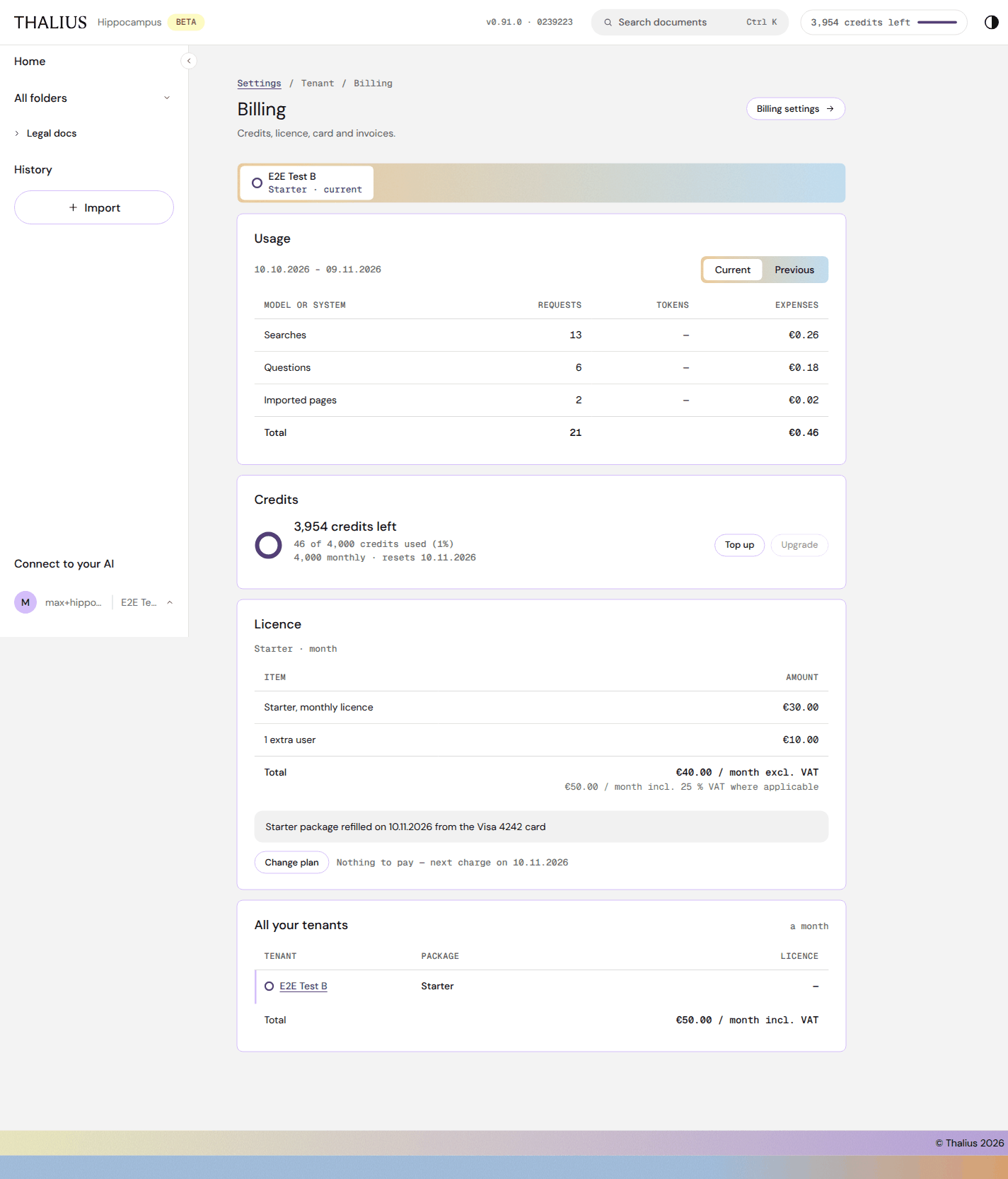
| Section / control | What it does |
|---|---|
| Billing settings → | Company details, VAT number, card, invoices |
| Tenant tabs | One per tenant you own |
| Usage · Current / Previous | Requests and cost per action type (searches, questions, imported pages) in this or the last period |
| Credits | Credits left, used and total; when they reset |
| Top up | Buy credits (Starter) |
| Upgrade | Move to a higher plan |
| Licence | Plan and extra users, with the total excl. and incl. VAT, and the card that pays |
| Change plan | Move to Free at the end of the period (16.3) |
| Pay now / Nothing to pay | Pay an open invoice, or the next charge date |
| All your tenants | Plan and monthly licence of every tenant you own |
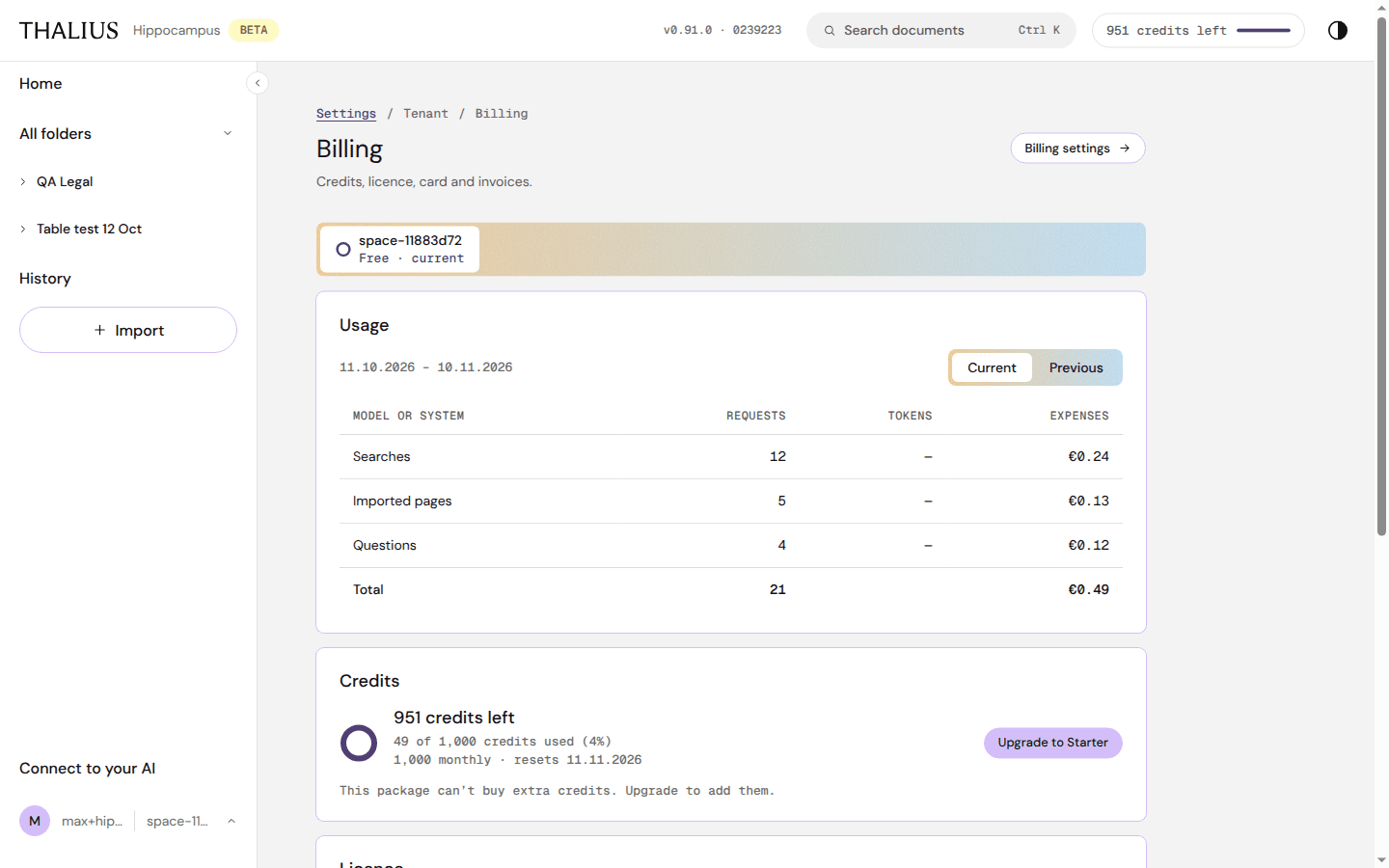
On Free, Billing shows usage and credits with Upgrade to Starter. Free can't buy extra credits.
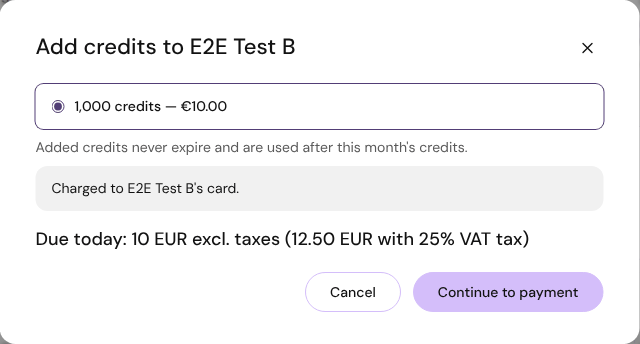
| Control | What it does |
|---|---|
| 1,000 credits — €10.00 | The credit pack |
| Cancel | Close |
| Continue to payment | Opens the secure payment page (Stripe). After paying you come back to Hippocampus |
Added credits never expire and are used after the month's credits.
Back in Hippocampus, Payment confirmed lists what changed (plan, credits, renewal date) with OK. If the payment didn't go through, nothing changed; try again.
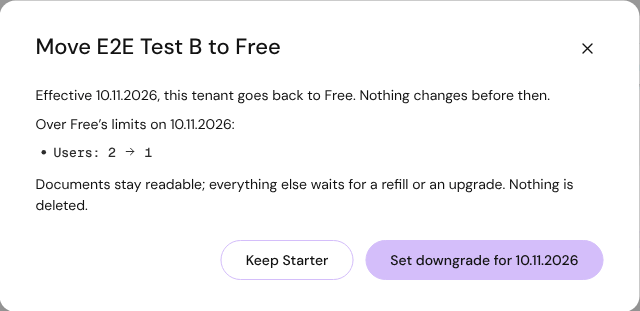
| Control | What it does |
|---|---|
| Keep Starter | Close; nothing changes |
| Set downgrade for {date} | The tenant moves to Free at the end of the period. It lists what is over Free's limits (e.g. users). Nothing is deleted; documents stay readable |
Until that date, Billing shows Moving to Free on {date} with Keep Starter to undo it.
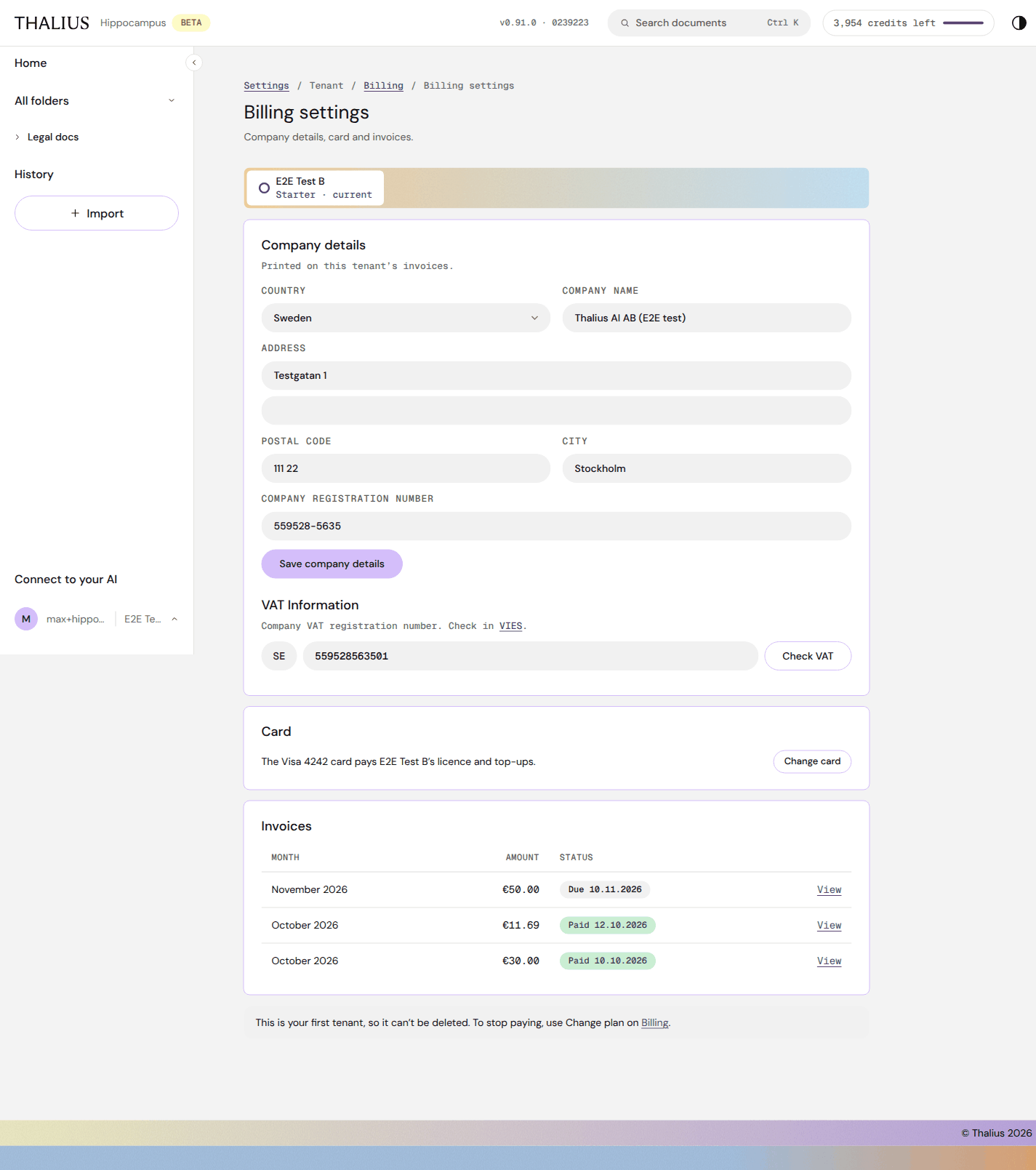
| Control | What it does |
|---|---|
| Company details: Country, Company name, Address, Postal code, City, Company registration number | Printed on this tenant's invoices |
| Save company details | Saves them |
| VAT Information + Check VAT | Your company VAT number, checked in the EU VIES register (✓ VAT is OK, Not valid, VIES didn't answer) |
| Card · Change card | Opens the payment portal to change the card |
| Invoices · View | Every invoice with month, amount and status |
| Delete {tenant}… | Deletes a tenant you own and stops its subscription (not your first tenant) |
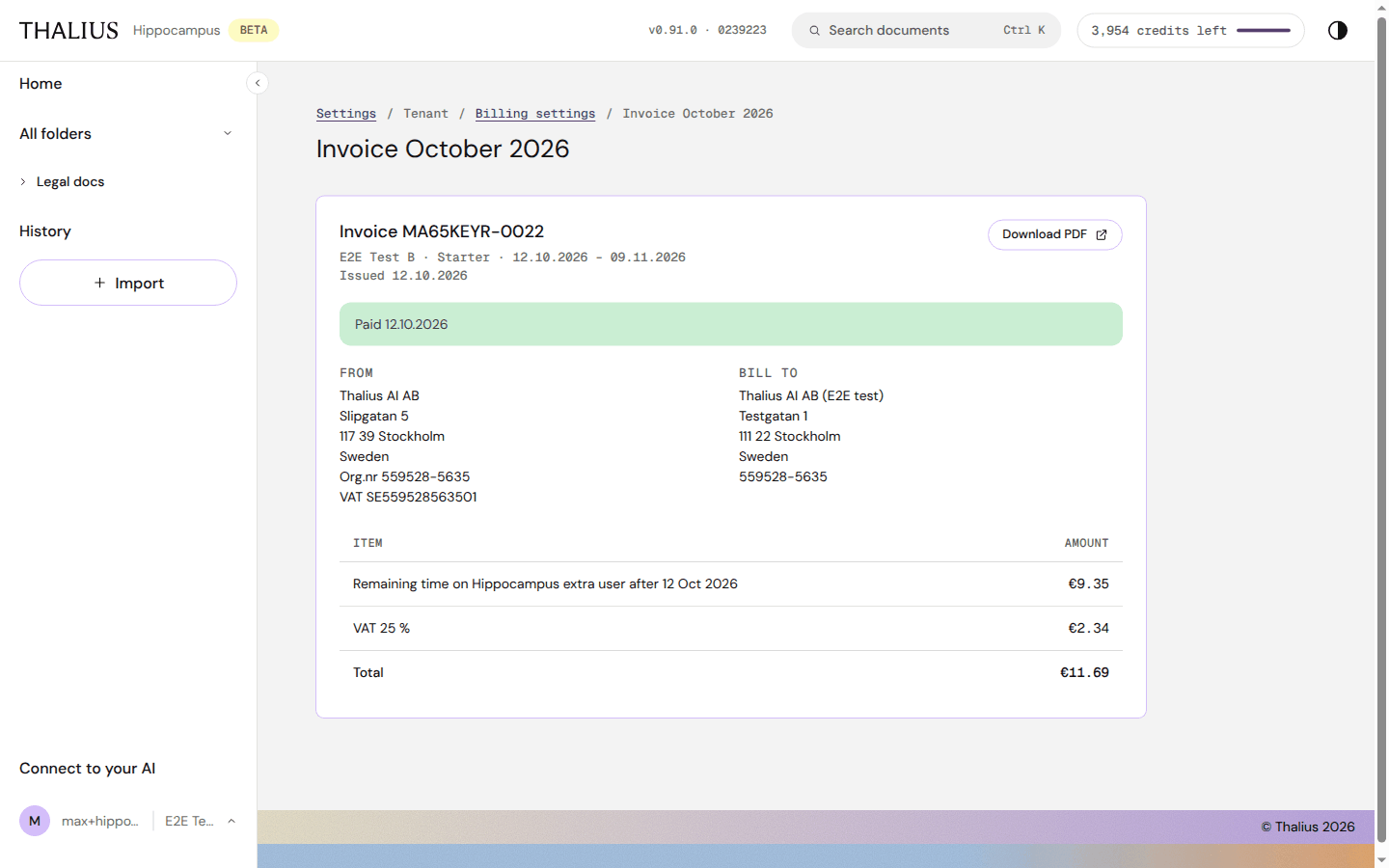
| Control | What it does |
|---|---|
| Download PDF ↗ | The invoice as PDF |
| Pay now ↗ | Pay an open invoice |
| From / Bill to / items | Seller, your company details, lines, VAT and total |
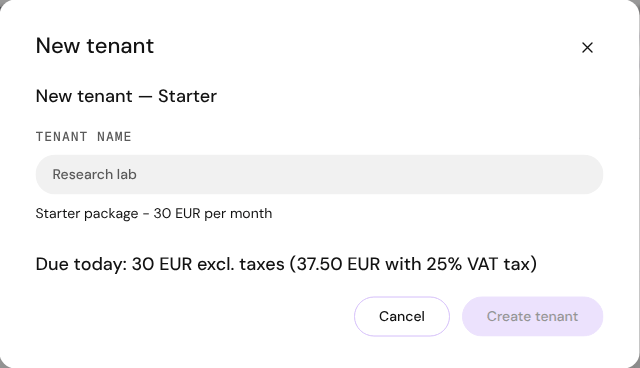
Enter a Tenant name and press Create tenant. You go to payment; the new tenant gets its own address, its own Starter subscription and its own credits. Free includes one tenant only.
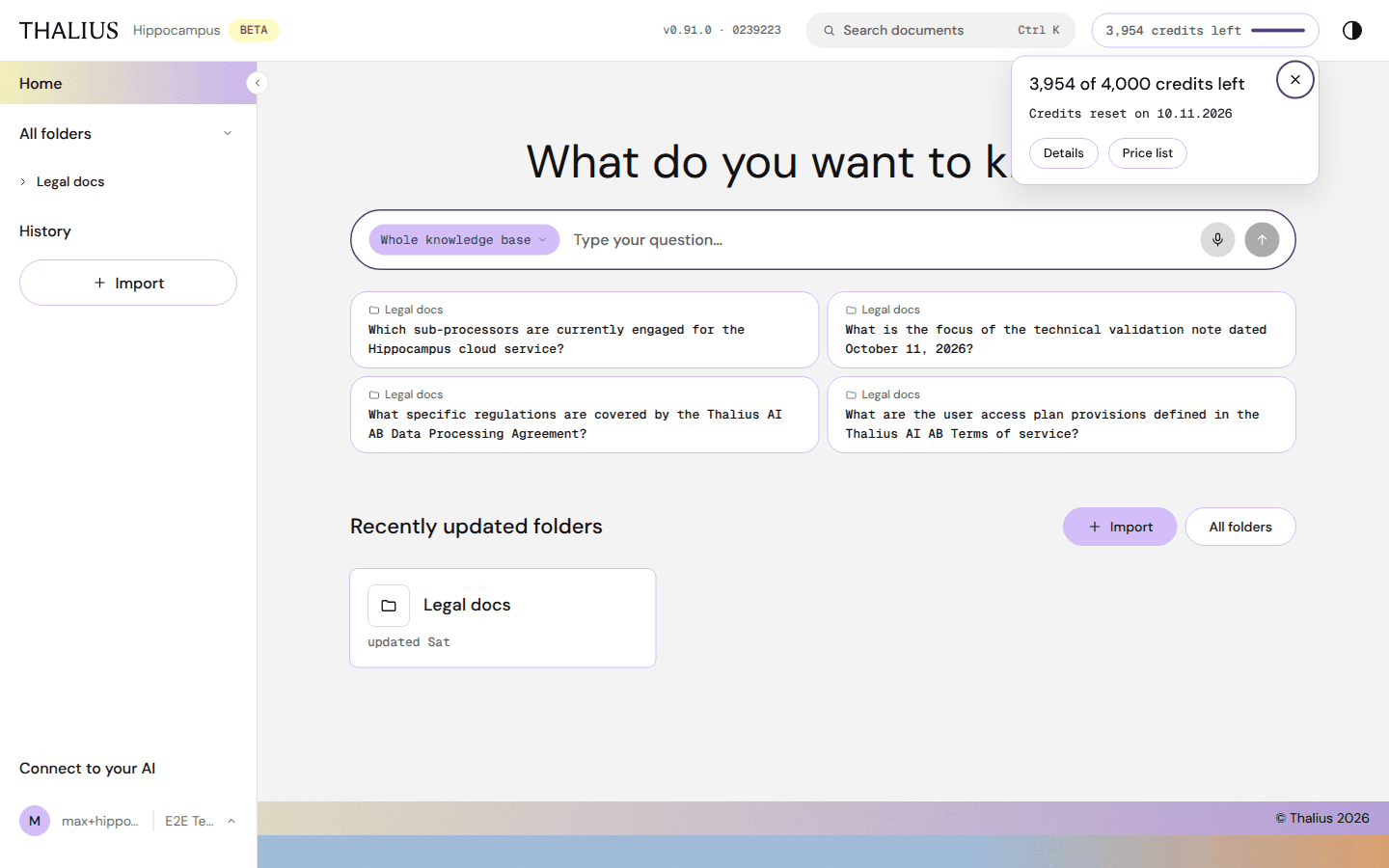
| Element | What it does |
|---|---|
| Pill colour | Green under 50 % used, yellow from 50 %, red from 80 % |
| N of M credits left · Credits reset on {date} | Balance and renewal date |
| Details | Opens Billing (owners) |
| Price list | Opens Plans |
| Top up / Upgrade | Shown once 60 % is used: Top up on Starter, Upgrade on Free |
The popup opens by itself the first time you pass each 20 % step in a period.
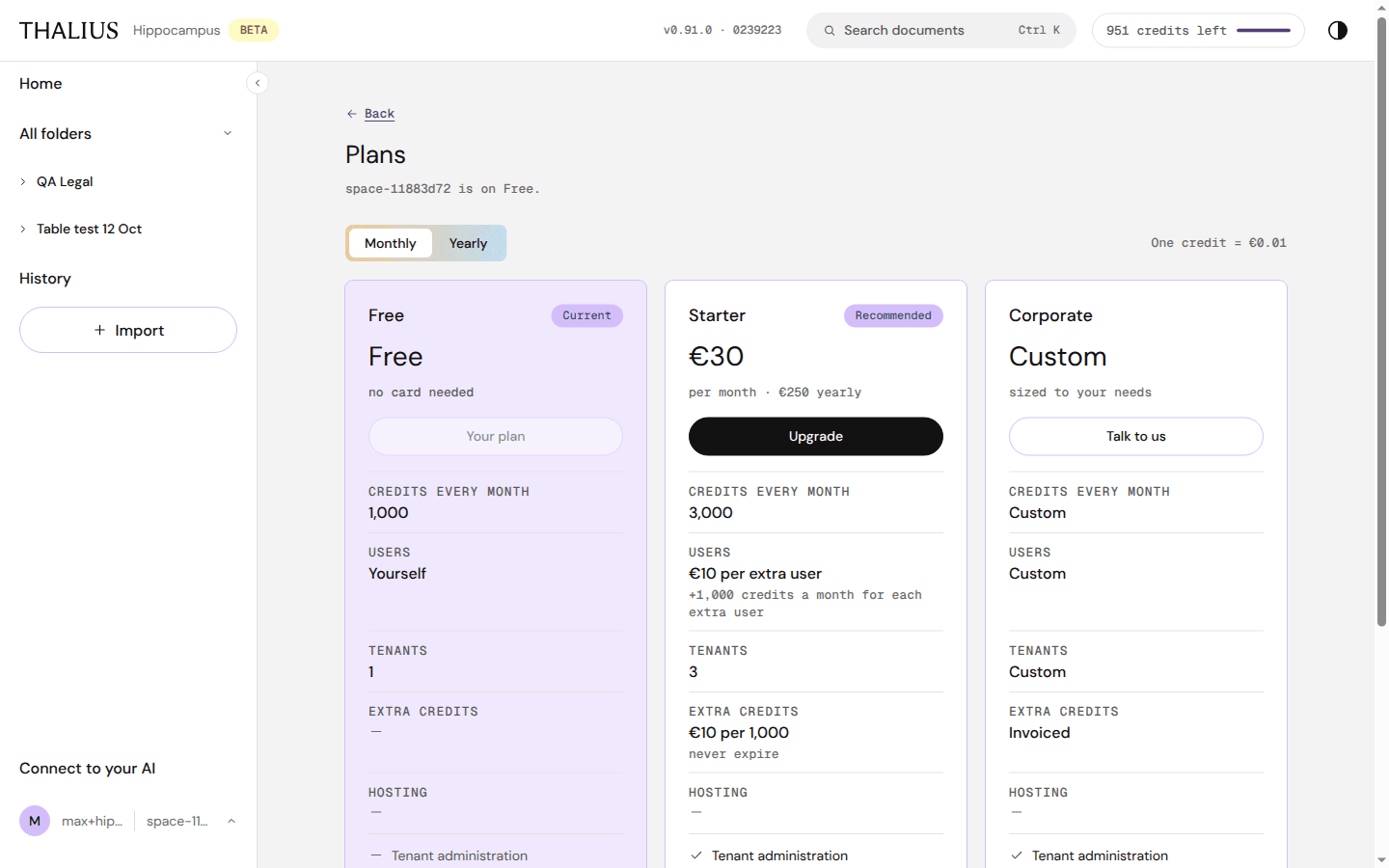
| Control | What it does |
|---|---|
| ← Back | Return where you came from |
| Monthly / Yearly | Show monthly or yearly prices |
| Your plan | Your current plan |
| Upgrade | Opens the upgrade dialog (17.4) |
| Talk to us | Corporate: contact Thalius |
| What each action costs ↗ | The credit tariff |
| Free | Starter | Corporate | |
|---|---|---|---|
| Price (excl. VAT) | €0, no card needed | €30 a month or €250 a year | Custom |
| Credits every month | 1,000 | 3,000 | Custom |
| Users | Yourself | €10 per extra user a month, +1,000 credits each | Custom |
| Tenants | 1 | 3 | Custom |
| Extra credits | — | €10 per 1,000, never expire | Invoiced |
| Hosting | Our cloud, EU | Our cloud, EU | To your requirements, EU |
| Tenant administration, Advanced ingest models, Premium answer model | — | ✓ | ✓ |
| Single sign-on, audit export, DPA; your own model key | — | — | ✓ |
One credit = €0.01. Reading your documents is free on every plan.
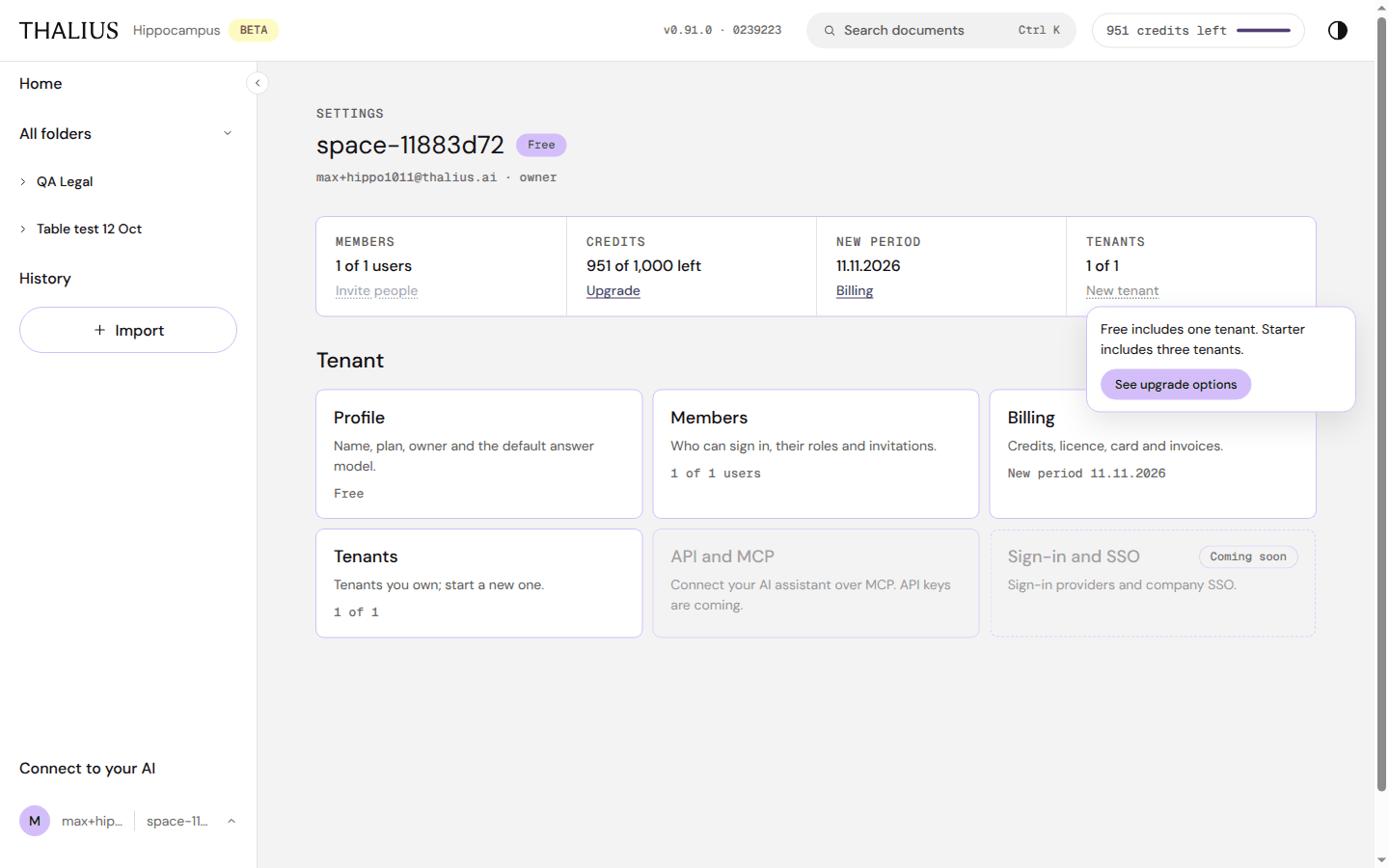
A control your plan doesn't include stays visible but greyed. Hover, focus or tap it to see why, with See upgrade options (or Buy credits when only credits are missing).
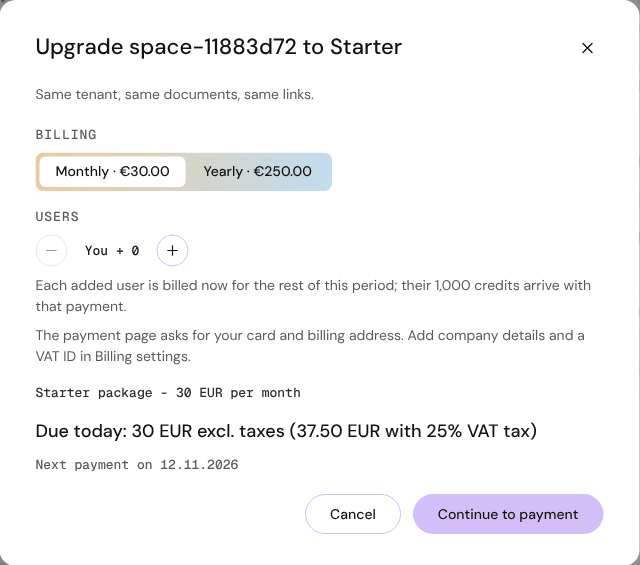
| Control | What it does |
|---|---|
| Monthly · €30.00 / Yearly · €250.00 | Billing period |
| − / You + N / + | Extra users. Each is billed now for the rest of the period and brings 1,000 credits |
| Price lines | Starter package - 30 EUR per month · Due today: … excl. taxes (… with 25% VAT tax) · Next payment on {date} |
| Cancel | Close |
| Continue to payment | Opens the payment page (card and billing address). Company details and VAT ID go in Billing settings |
Same tenant, same documents, same links: nothing moves when you upgrade.
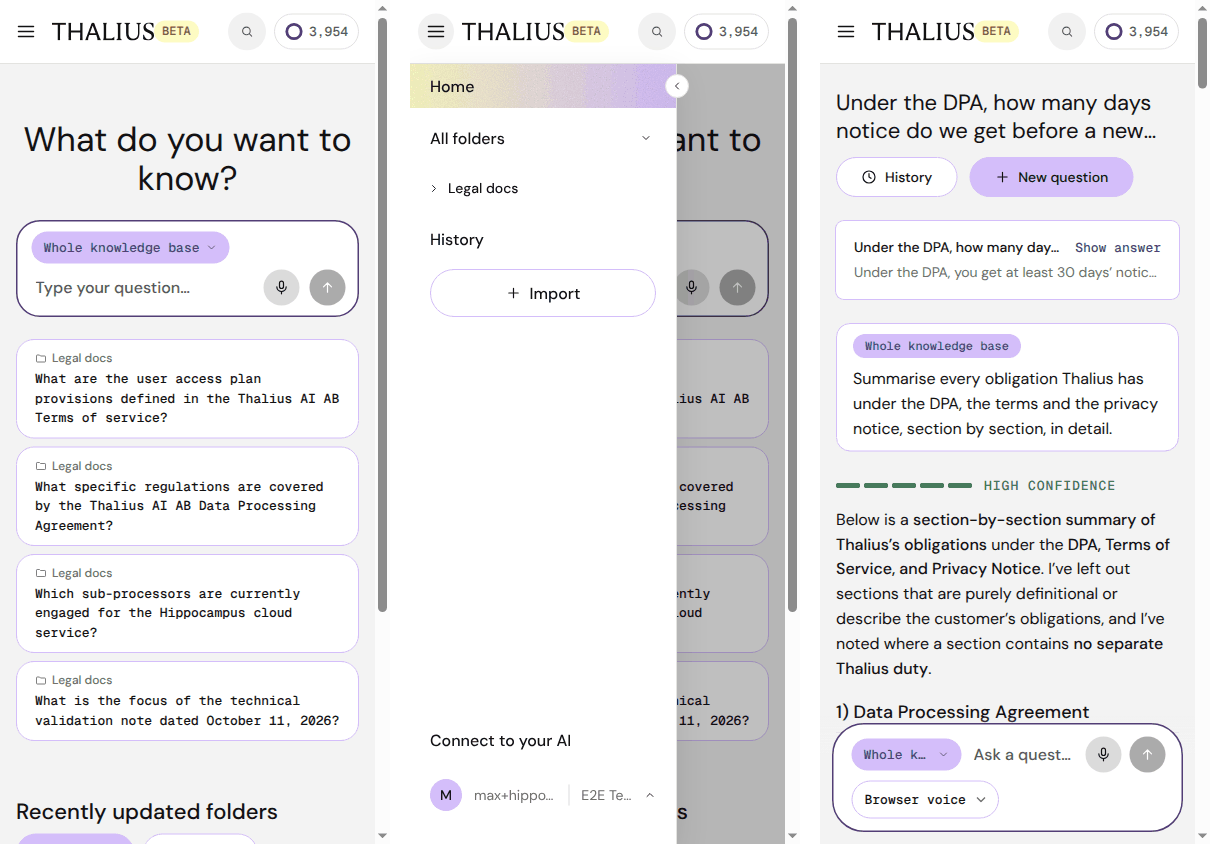
| On a phone | |
|---|---|
| ☰ | Opens the side menu |
| 🔍 | Opens the search field |
| Ring + number | Credits left; tap for the popup |
| Dark mode, What's new | In the account menu |
| Originals | Open full screen with page and zoom buttons |
| Shortcut | Action |
|---|---|
| Ctrl K / ⌘K | Search documents (in Import: search folders) |
| ⌘J (Mac) | Open the question box |
| Enter / Shift+Enter | Ask / new line |
| ↑ ↓ (empty question field in chat) | Walk through past questions |
| Esc | Stop an answer; close menus, dialogs and fullscreen |
| ↑ ↓ → ← Enter | Move in the scope picker and menus |
| ⌘B / ⌘I / ⌘K (Ctrl on Windows) | Bold, italic, link in the editor |
| Tab (first) | Skip to main content |